
Who this is for and what it does
Interpreters who need to bring a third person into a call by phone, for example a pharmacy or a family member. The person you call joins the same call.
Steps
On a video call
Select Dial at the top of the call.
Under Number, enter the phone number. It starts with +1 for the US; for another country, type + and that country's code instead.
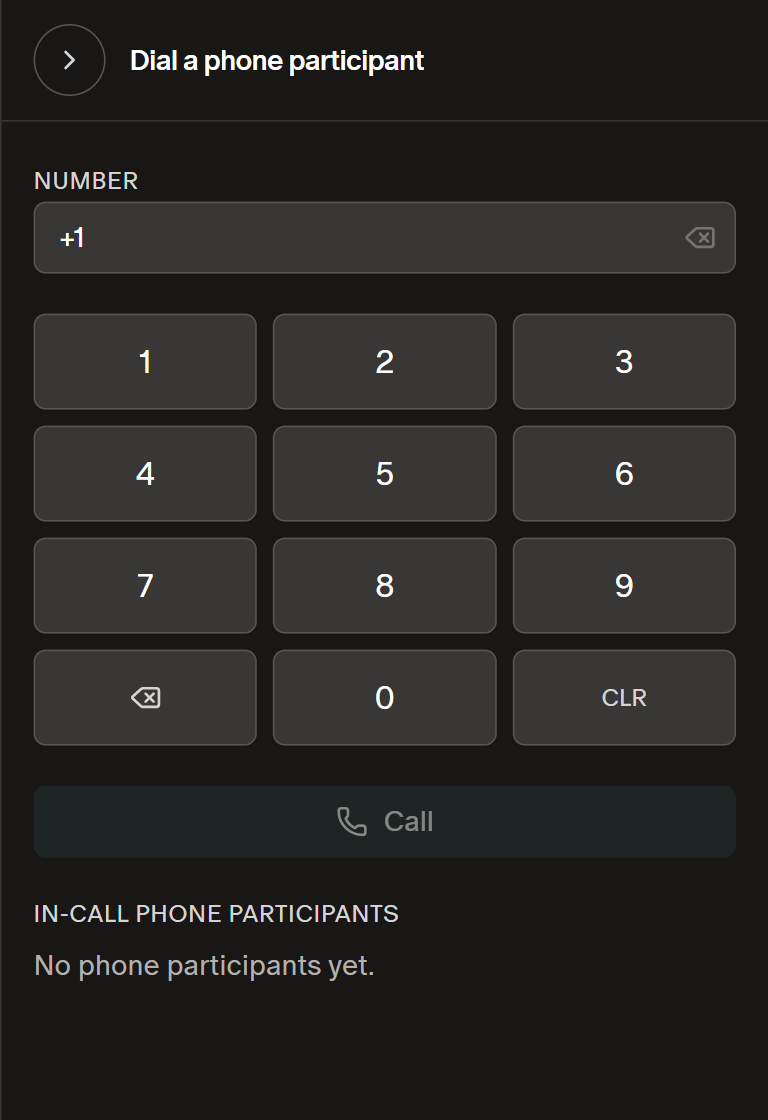
Select Call. The number shows "Ringing…" until they answer.
On a phone call
Select Add under Participants.
Enter the phone number in Add Phone Participant, with + and the country code.
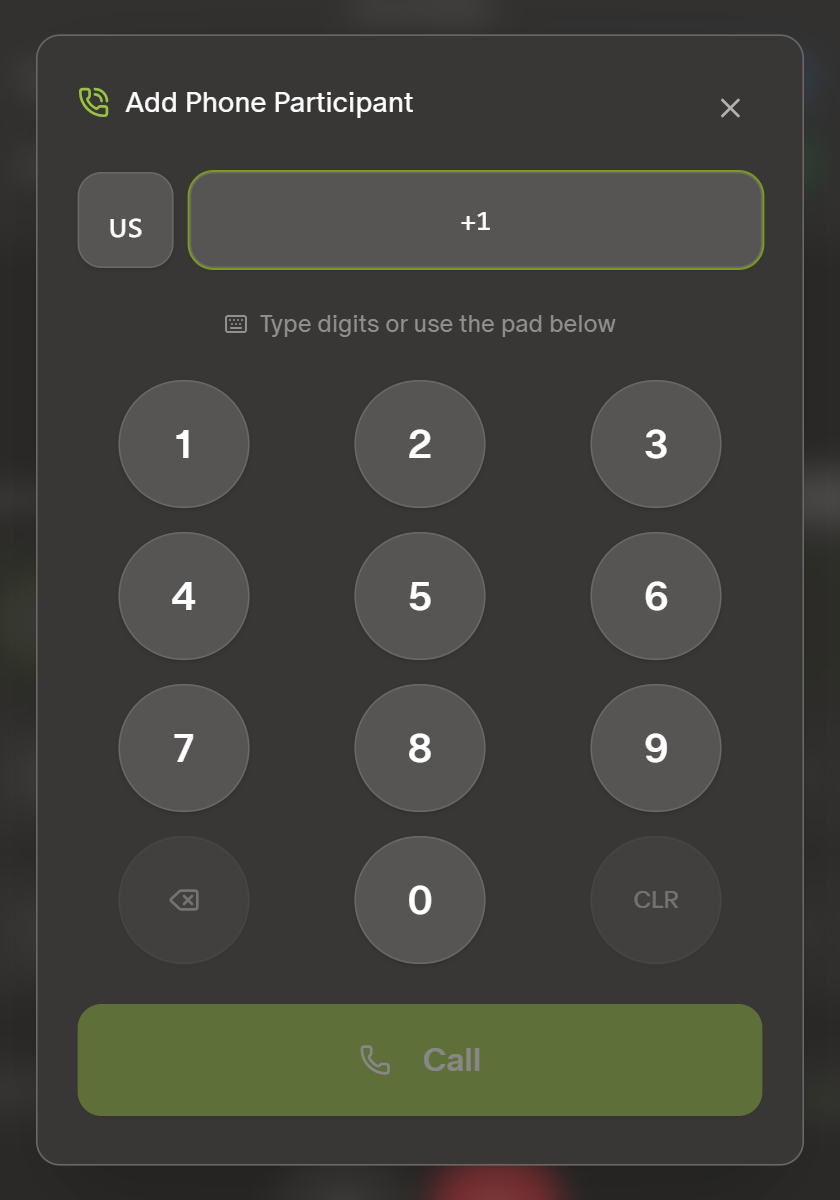
Select Call.
Reach a phone menu
When the person you called is connected, select Keypad and press the keys the menu asks for.
What you will see
A message reads "Participant called, waiting for them to answer...". To stop a call that is still ringing, use the cancel button next to the number; a message reads "Dial cancelled". A number that never answers drops off the list after about a minute.
Things that most often look wrong, and why:
Call stays greyed out. The number is not complete or not valid yet. Check the digits and the country code.
"Failed to call phone number. Please try again." The call did not go out. Check the number and try again.
There is no Keypad button. The keypad shows only while the person you called is connected. On a video call it shows when exactly one person you dialled is connected.
Available since March 2026
Last updated 14 October 2026