
Who this is for and what it does
Interpreters who are online for on-demand calls. Each offer waits only a short time for your answer, so keep Connexus open where you can see and hear it.
Steps
When a call comes in, the call button reads "Incoming Call!" and a window opens with a ring.
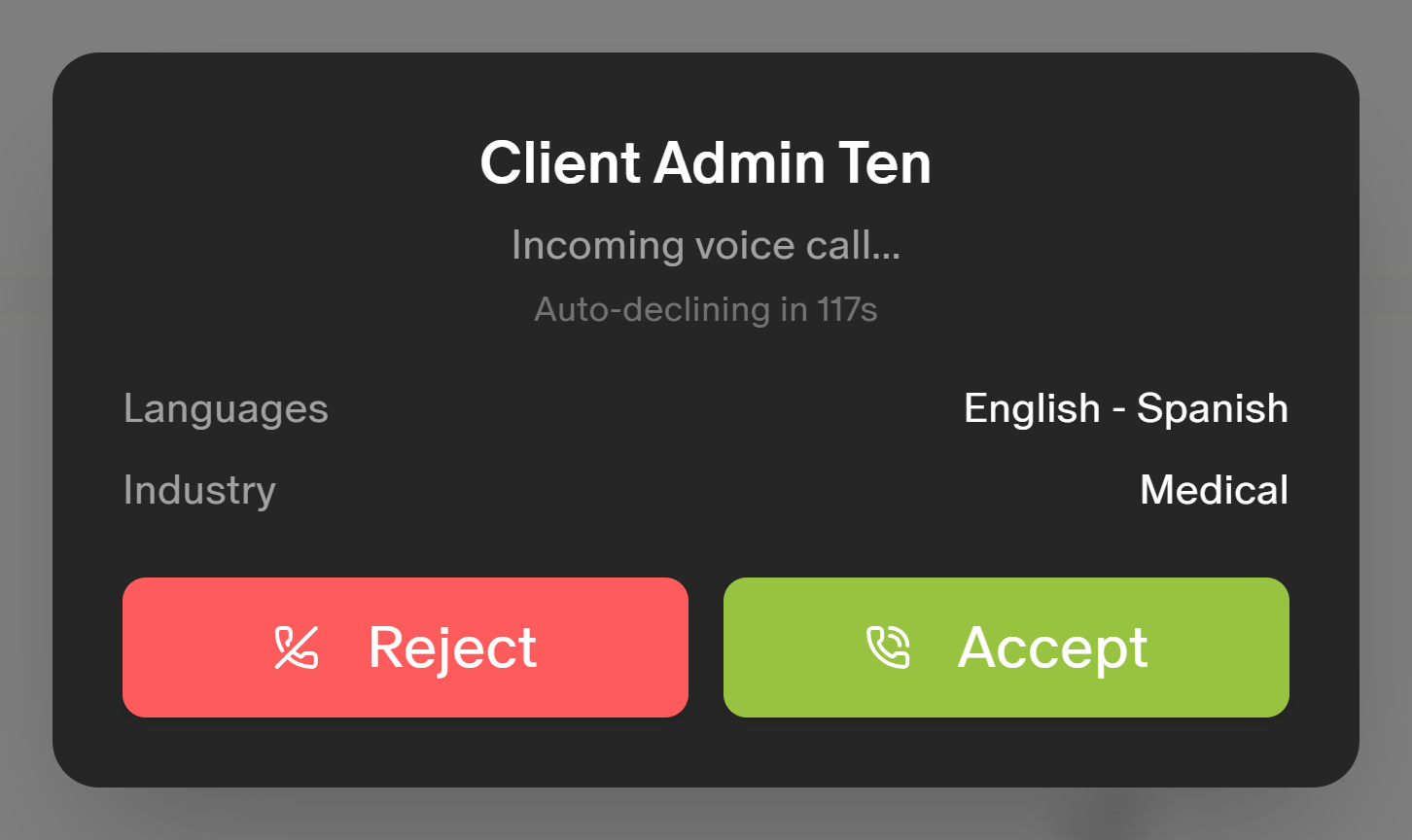
Check the caller's name, the Languages and the Industry, and whether it reads "Incoming video call..." or "Incoming voice call...".
Select Accept to take it, or Reject to pass. "Auto-declining in" shows how many seconds are left.
After you accept, Connexus connects you:
Video: a new page opens. Allow your camera and microphone, check your picture, then select Join now.
Phone: the phone call screen opens over the page you were on.
To finish, select Leave Call and confirm. Rate the call quality, then select Leave.
What you will see
While Connexus connects you, it reads "Connecting to call...". The client is the one who ends a call for everyone. When you leave, a summary shows how long the call lasted.
Things that most often look wrong, and why:
"Another interpreter took this call" with "They answered first. You are still online and can take the next call.": another interpreter accepted first. "This call is no longer available" means the offer ended for another reason; you are still online.
The window disappeared before I answered. The caller hung up, or the time to answer ran out.
"Connection Failed". Connexus could not connect you. Select Try Again. If it fails again, select Cancel.
I do not hear the ring. See "Make sure you hear incoming calls ring".
Available since March 2026
Last updated 2 November 2026