
Who this is for and what it does
Some clients ask their callers a few questions before an interpreter joins, for example the caller's name or which department the call is for. When you take an on-demand phone call for one of those clients, a Pre-Call Q&A button appears on your call screen. It lets you check the answers the caller gave, on the phone line or on the Connexus portal, and correct or complete them, so the client's record of the call is right. On a phone call it stays until you submit the answers for that call. On an on-demand video call there is a Pre-Call Q&A button too, but it only shows the answers; see On a video call below. There is no button on scheduled appointments, or for clients that do not use these questions.
Before you start
- You are signed in as an interpreter and available for on-demand calls.
- You have accepted an on-demand phone call. For an on-demand video call, see On a video call below. There is no button on scheduled appointments.
- The client has set up pre-call questions. If they have not, there is no button, and nothing is needed from you.
Steps
-
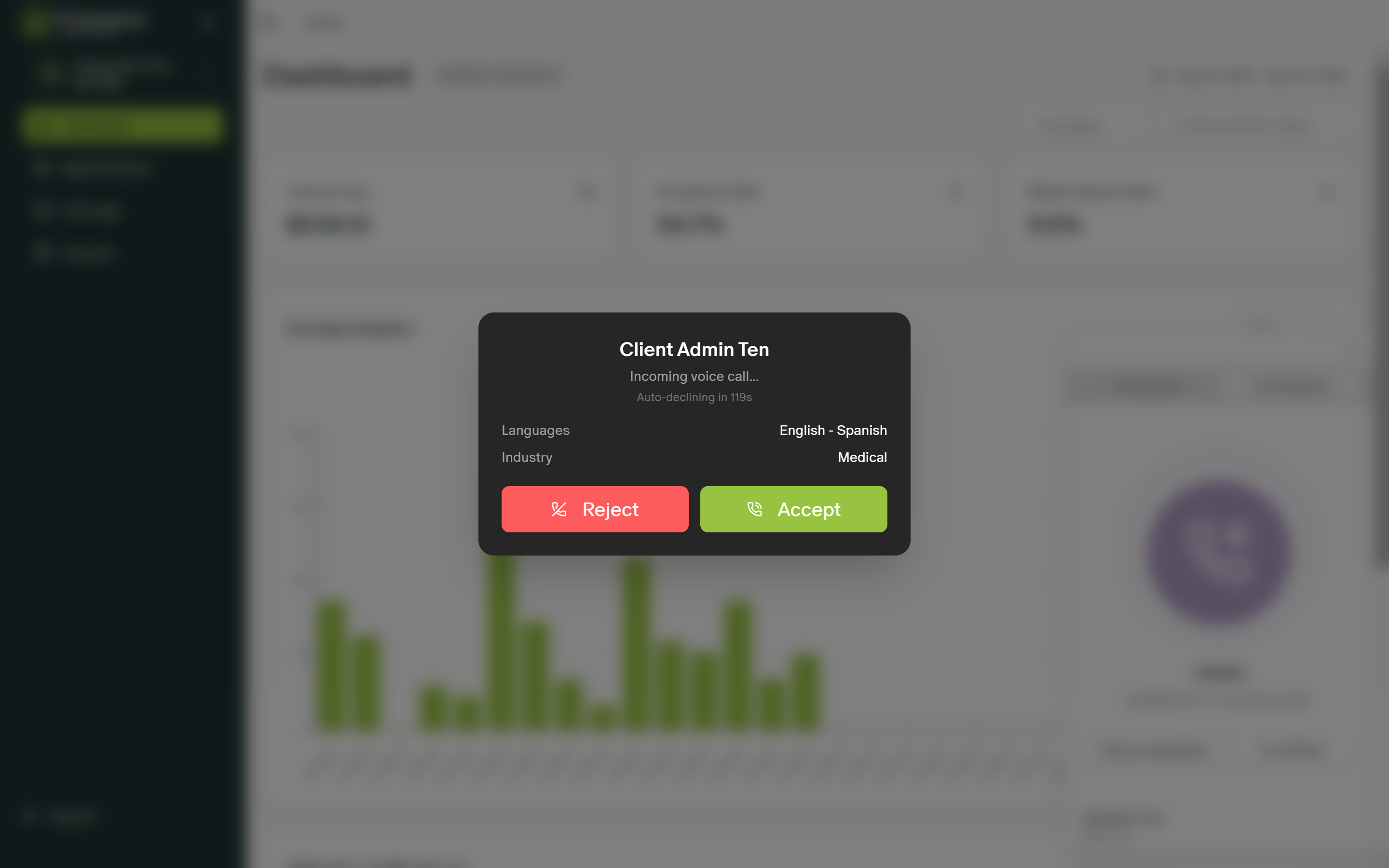
Accept the incoming call as usual.
-
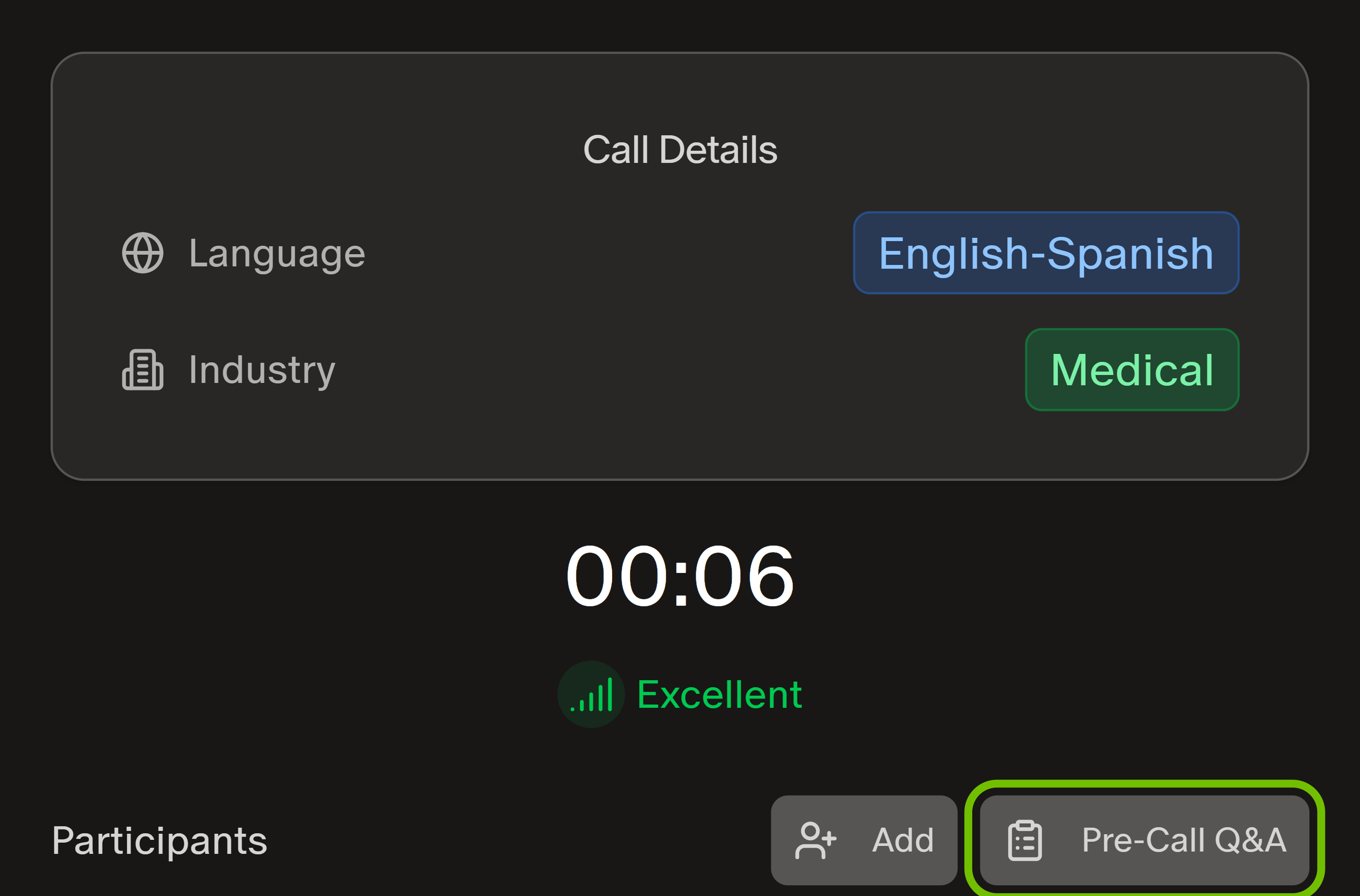
On the call screen, look to the right of Participants and select Pre-Call Q&A.
-
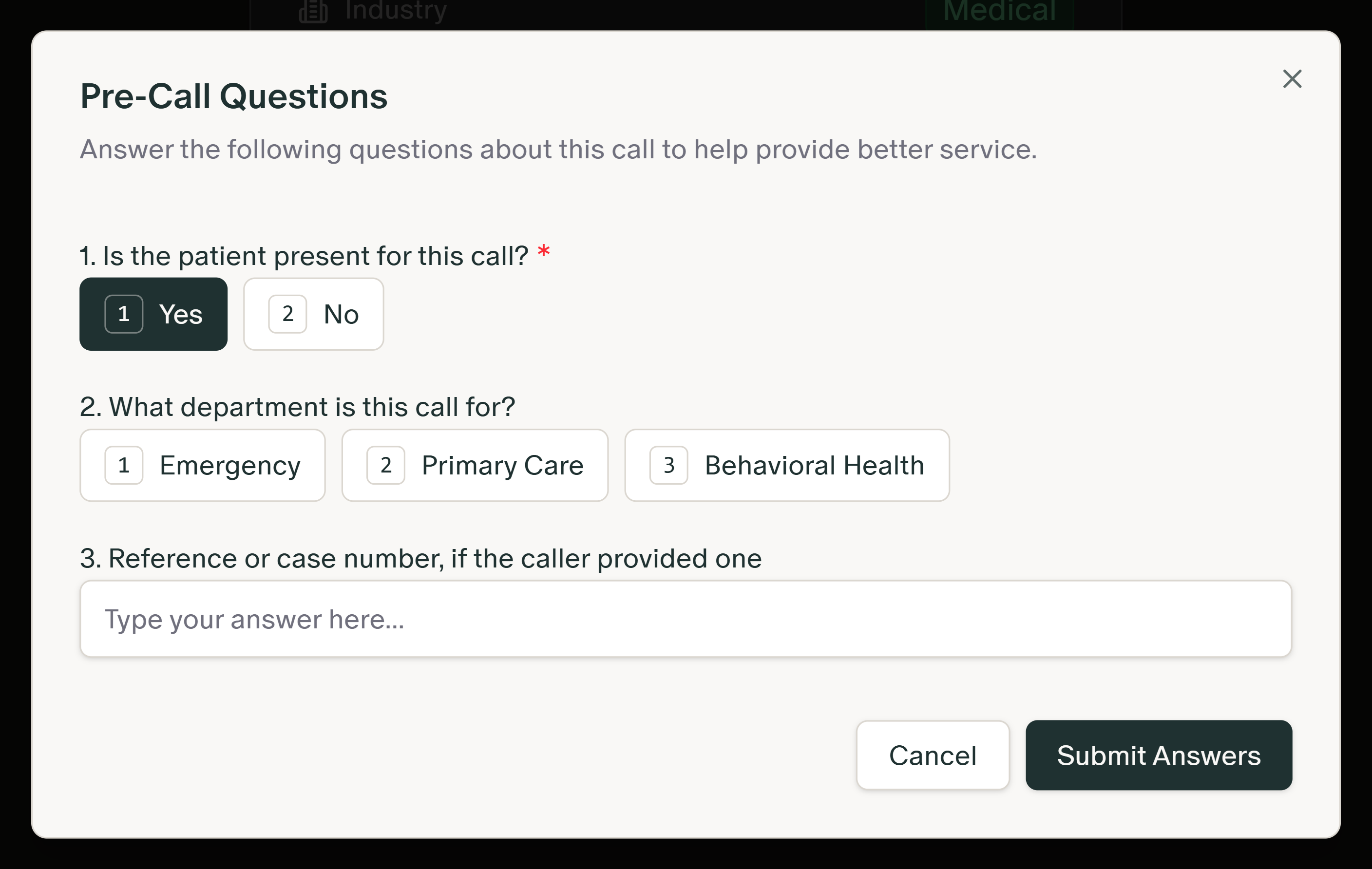
The Pre-Call Questions window opens. Read each question. If the client shares the caller's answers with interpreters, the answers the caller already gave, on the phone line or on the portal, are filled in. Check them with the caller and correct anything that is wrong.
-
Answer each question. For a multiple-choice question, select one of the options; the number on each option matches the key the caller would have pressed. For a typed question, type the answer in the box. Questions marked with an asterisk are required.
-
Select Submit Answers. Select Cancel instead if you want to close the window without saving; you can open it again from the same button.
What you will see
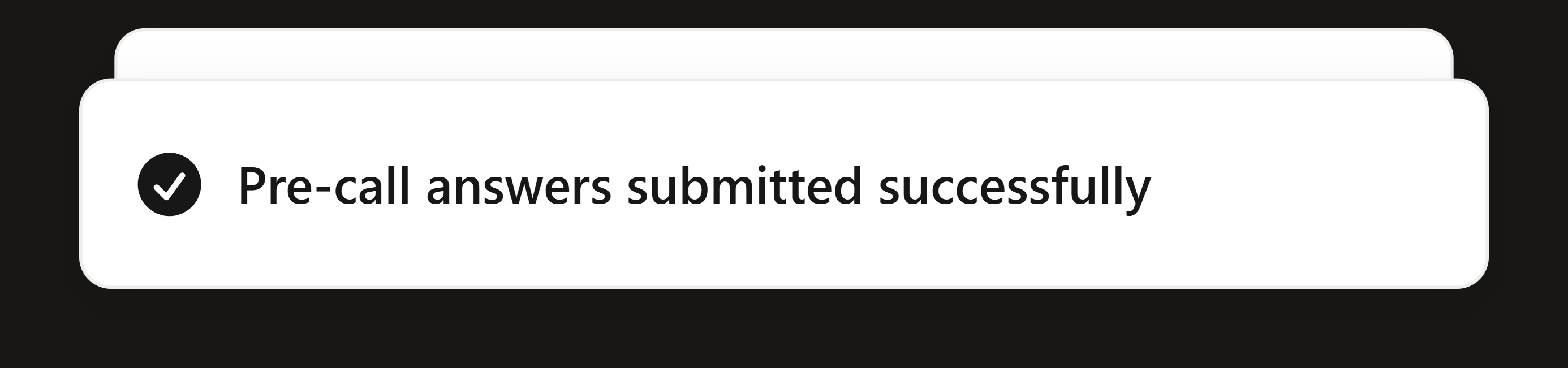
A message reads "Pre-call answers submitted successfully" and the button disappears for the rest of that call. The answers are saved with the call and appear on the client's call record and in the client's reports. If you leave an optional question blank, any answer the caller already gave is kept.
Things that most often look wrong, and why:
- There is no Pre-Call Q&A button. Either this client has no pre-call questions, or the call is a scheduled appointment, or you have already submitted answers for this call. None of these needs any action from you.
- Submit Answers is greyed out. A required question, marked with an asterisk, has no answer yet. Answer it and the button becomes available.
- The message "Please answer all required questions" appears. The same cause. Fill in every question marked with an asterisk.
- The window is empty even though the caller answered questions. The client has chosen not to share the caller's answers with interpreters. Ask the caller the questions and enter the answers yourself.
On a video call
On an on-demand video call for a client that uses pre-call questions, a Pre-Call Q&A button appears at the top of the call screen. Select it to open a window that reads "The answers given on the portal before this call." Each question is listed with its answer, and the time they were submitted is shown above them. You cannot change them here. The window reads "No pre-call answers available for this appointment" if nobody answered, or if the client does not share callers' answers with interpreters.
Available since Release 08.20.2026. Multiple-choice questions since Release 09.01.2026. Video calls and portal answers since Release 10.05.2026.
Last updated 13 October 2026