
Who this is for and what it does
Interpreters who worked an on-site appointment. Closing the job records what happened, how long it took, your expenses and both signatures. Once locked, it cannot be changed. Video and phone appointments have no close-out.
Before you start
Do it at the end of the job, while the client representative is with you to sign.
Note your actual start and end times and your miles driven.
Steps
Open the appointment from Appointments and select Close Job. It appears once the start time has passed.
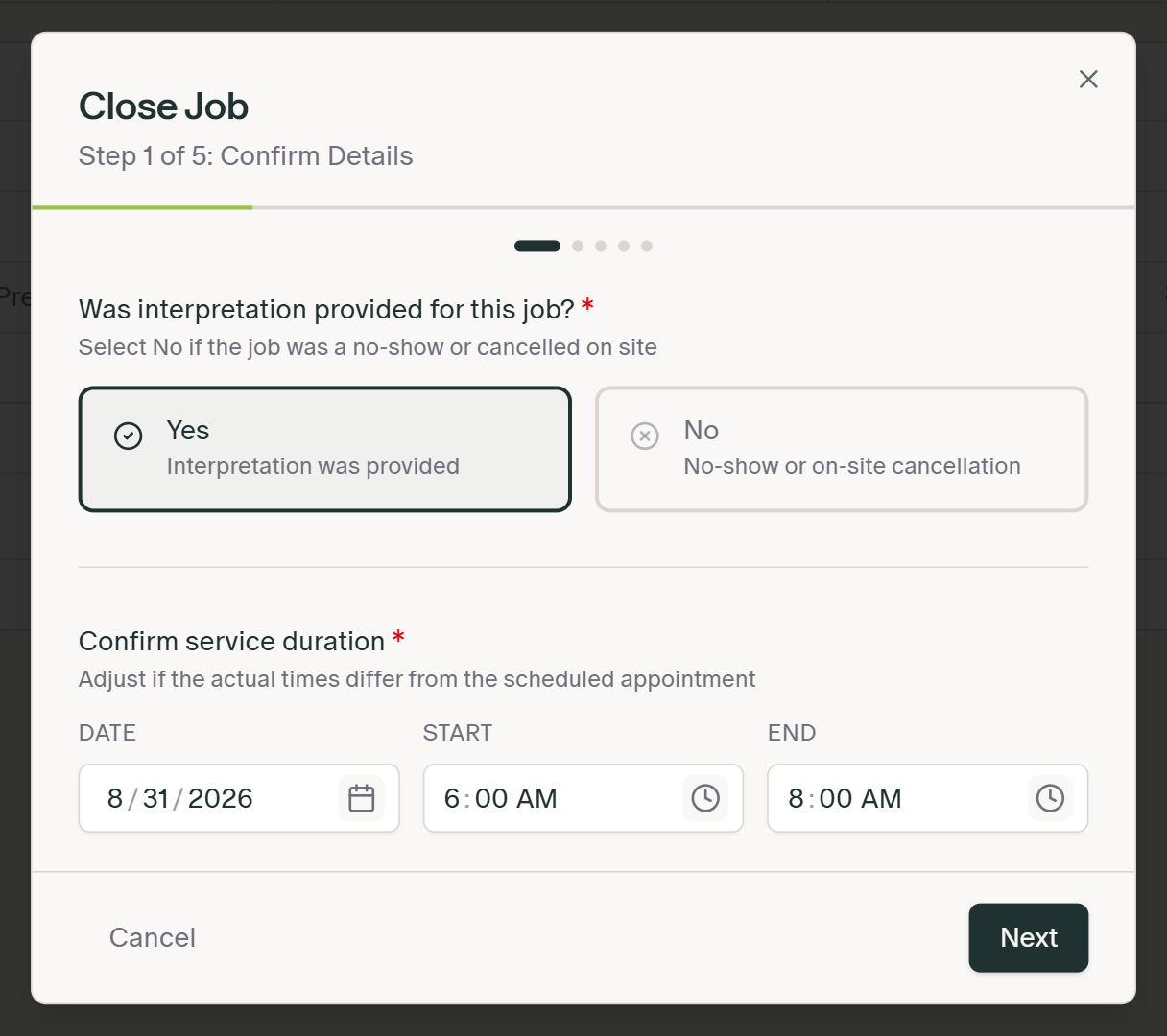
Confirm Details: answer Was interpretation provided for this job? with Yes, or No only for a job that did not happen and that you were not there for. If you travelled and the client cancelled or did not come, contact your coordination team before you close out: see What do I do if the client does not show up for an on-site job? Check the Date, Start and End, and change them if the actual times were different. Select Next.
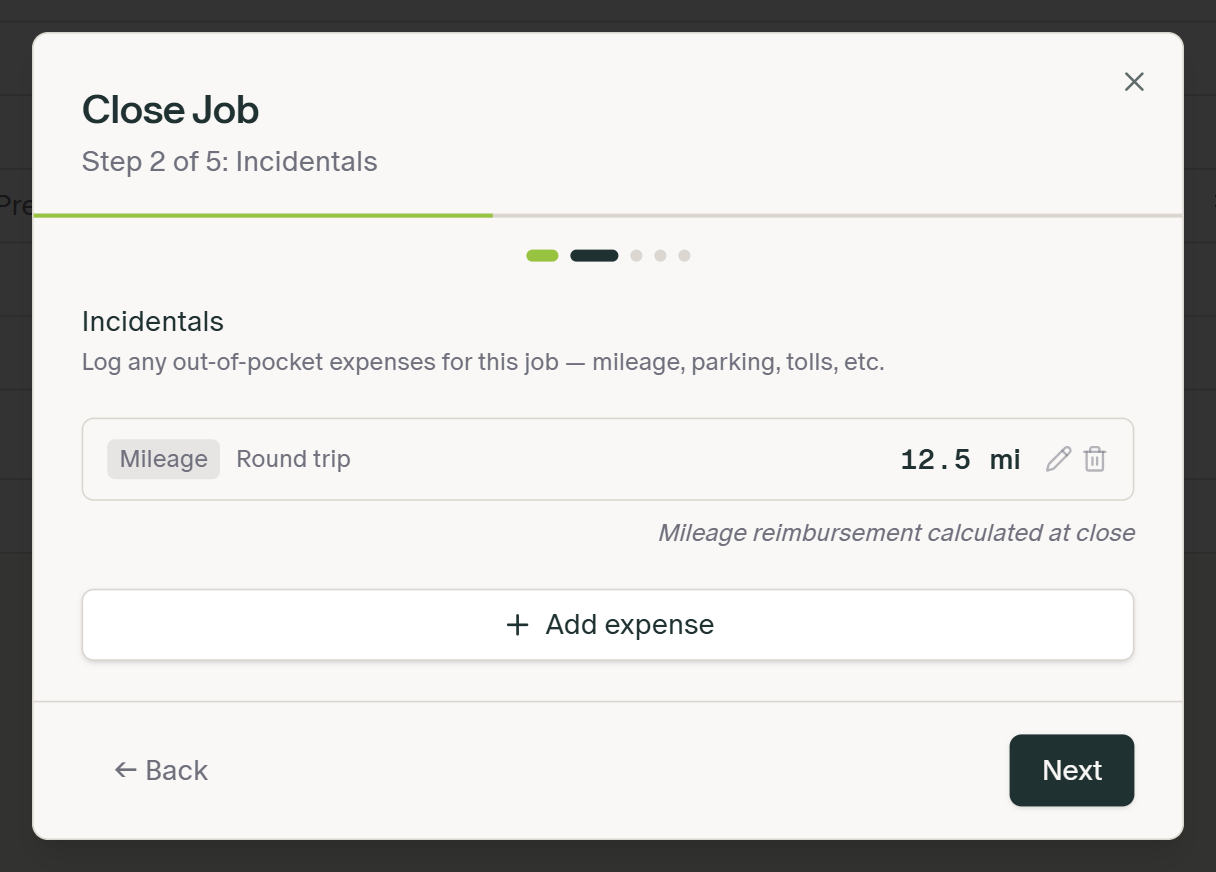
Incidentals: select Add expense for each cost. Choose the Type (Mileage, Parking, Bridge Tolls, Travel Time or Other). For mileage, enter the Miles driven; for the others, the Amount (USD). Select Save expense, then Next.
Close Notes: optionally, leave a note for Piedmont Global about the job, up to 2000 characters. Select Next.
Interpreter Signature: sign in the box. Select Clear and redo to start again. Select Next.
Client Representative: enter the representative's full name and have them sign in the box.
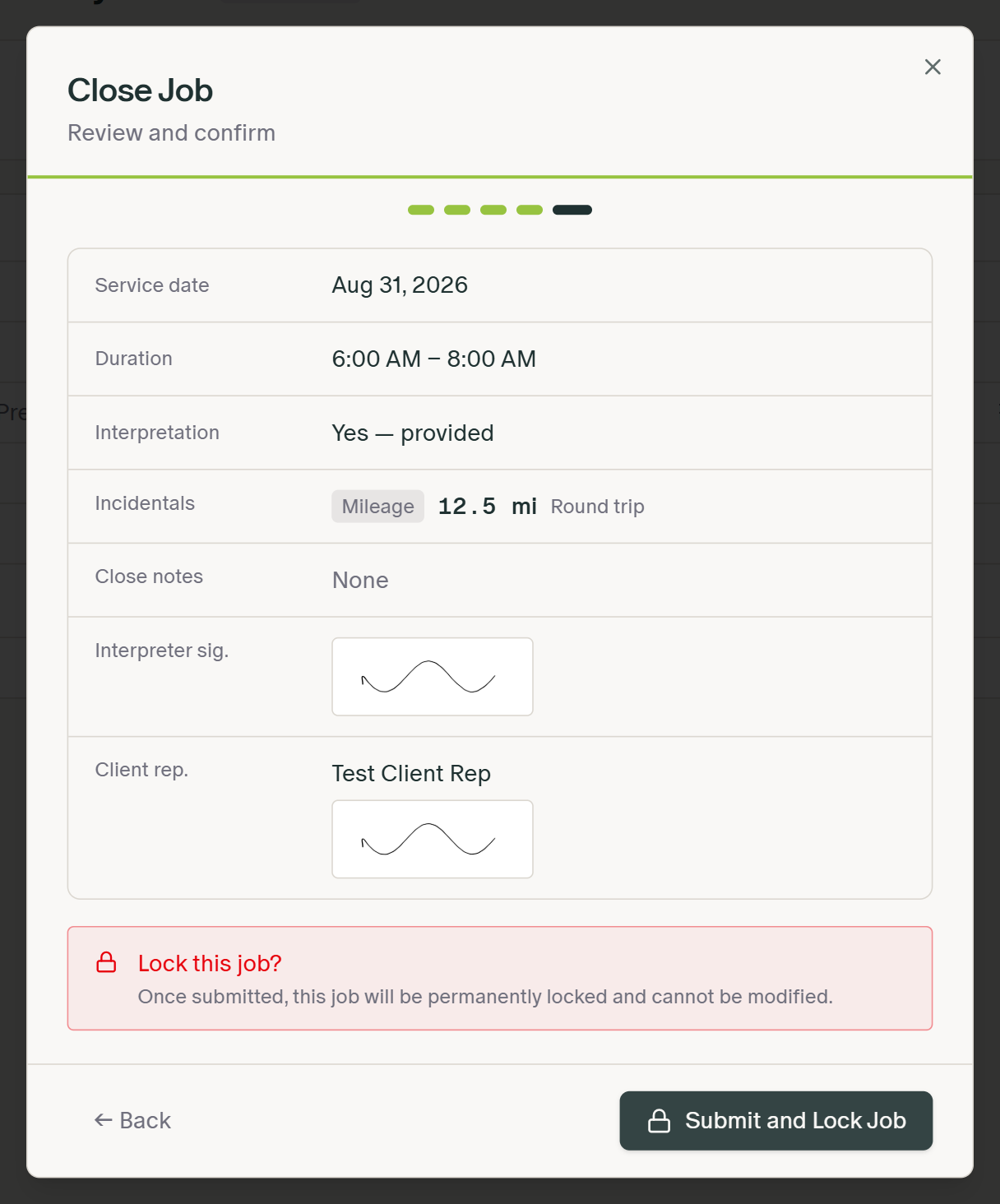
Select Submit and Lock Job. A review screen lists the date, duration, expenses, notes and signatures. Check them, then select Submit and Lock Job again to lock the job, or Back to change something.
If you answered No in step 2, there are no expense or signature steps: add a note and select Submit and Close.
What you will see
A message reads "Job closed successfully!" The job is locked and cannot be edited. Mileage reimbursement is calculated when the job is closed.
If several interpreters worked the same appointment, closing it closes your part only. The appointment completes when everyone has closed out.
Things that most often look wrong, and why:
There is no Close Job button. The appointment has not started yet, or it is a video or phone appointment.
The Start and End times look a few hours off. The times on Confirm Details follow the time zone your computer is set to. Check them against the job's actual times before you select Next.
"End time must be after start time". Check the times on Confirm Details, including whether the job ran past midnight.
"Interpreter signature is required" or "Client signature is required". Both signatures are needed when interpretation was provided.
"Appointment is already closed and locked". The job was already closed. Contact your coordination team at interpreter@piedmontglobal.com if something on it is wrong.
Available since March 2026
Last updated 20 October 2026