
Who this is for and what it does
Interpreters who worked a Third Party Platform appointment, where the client used their own meeting tool. Completing the job records what happened and how long it lasted. There are no signatures, and mileage cannot be added to these jobs.
Steps
Open the appointment from Appointments and select Complete Job. It appears once the start time has passed.
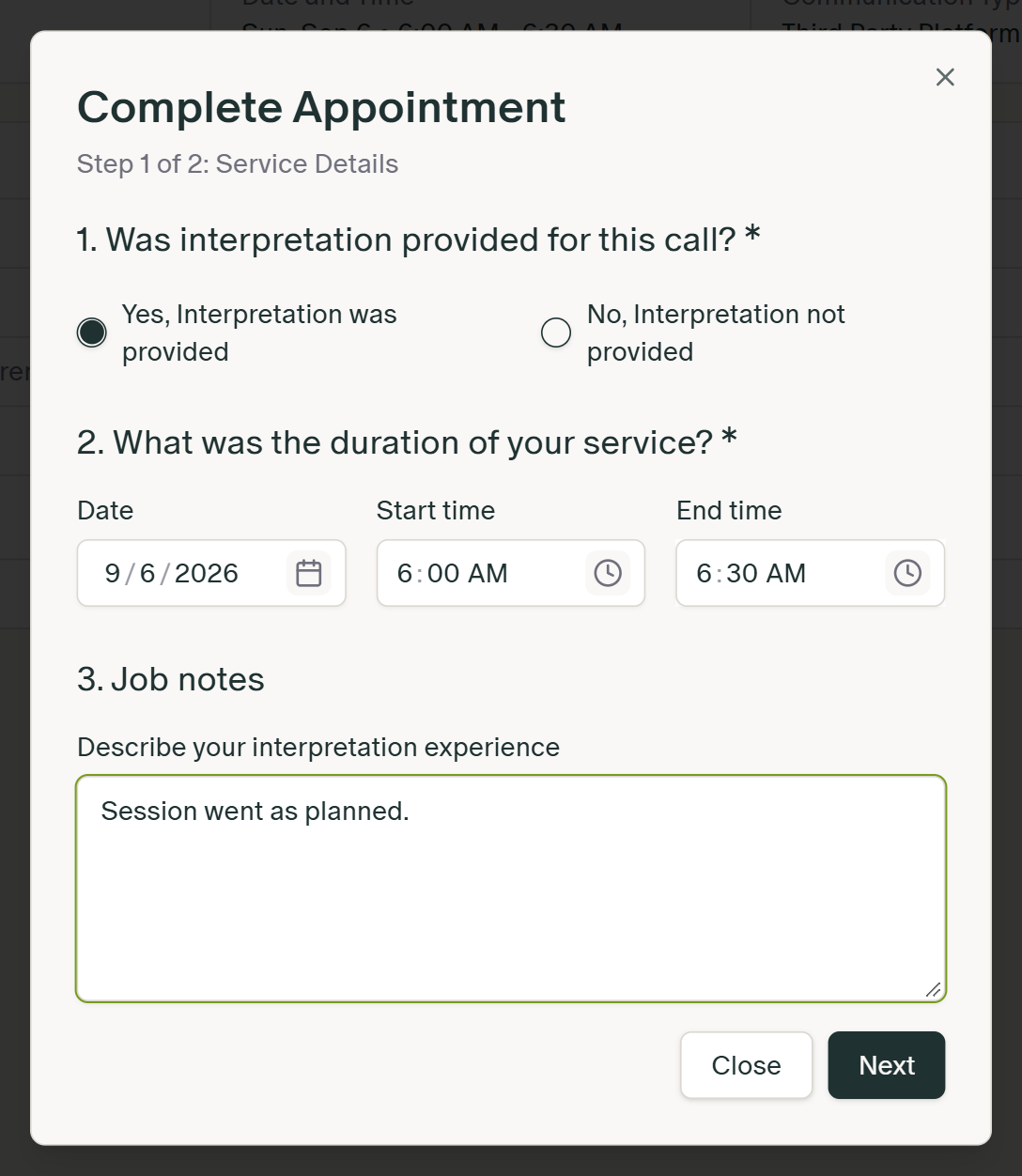
Service Details: answer Was interpretation provided for this call? Then set the Date, Start time and End time of your service, and add any Job notes. Select Next.
Summary: check the client name, language, date, duration and notes. Select Back to change anything.
Select Complete.
What you will see
A message reads "Appointment completed successfully!" If several interpreters worked the same appointment, this completes your part only. The appointment completes when everyone has submitted.
Things that most often look wrong, and why:
There is no Complete Job button. The appointment has not started yet, or it is not a Third Party Platform appointment. On-site jobs use Close Job instead.
"Only scheduled appointments can be completed". The appointment was cancelled or already completed. Contact your coordination team at interpreter@piedmontglobal.com if that looks wrong.
Available since March 2026
Last updated 14 October 2026