
Who this is for and what it does
Interpreters getting ready for an on-site appointment who need to know where to go and who to ask for.
Steps
Open Appointments and select the appointment.
In the DETAILS card, read the Location row for the address.
In the Contact Person card, find the name, phone number and email. Select the phone number to call or the email to write.
Read Description in the DETAILS card for anything the client wrote when booking.
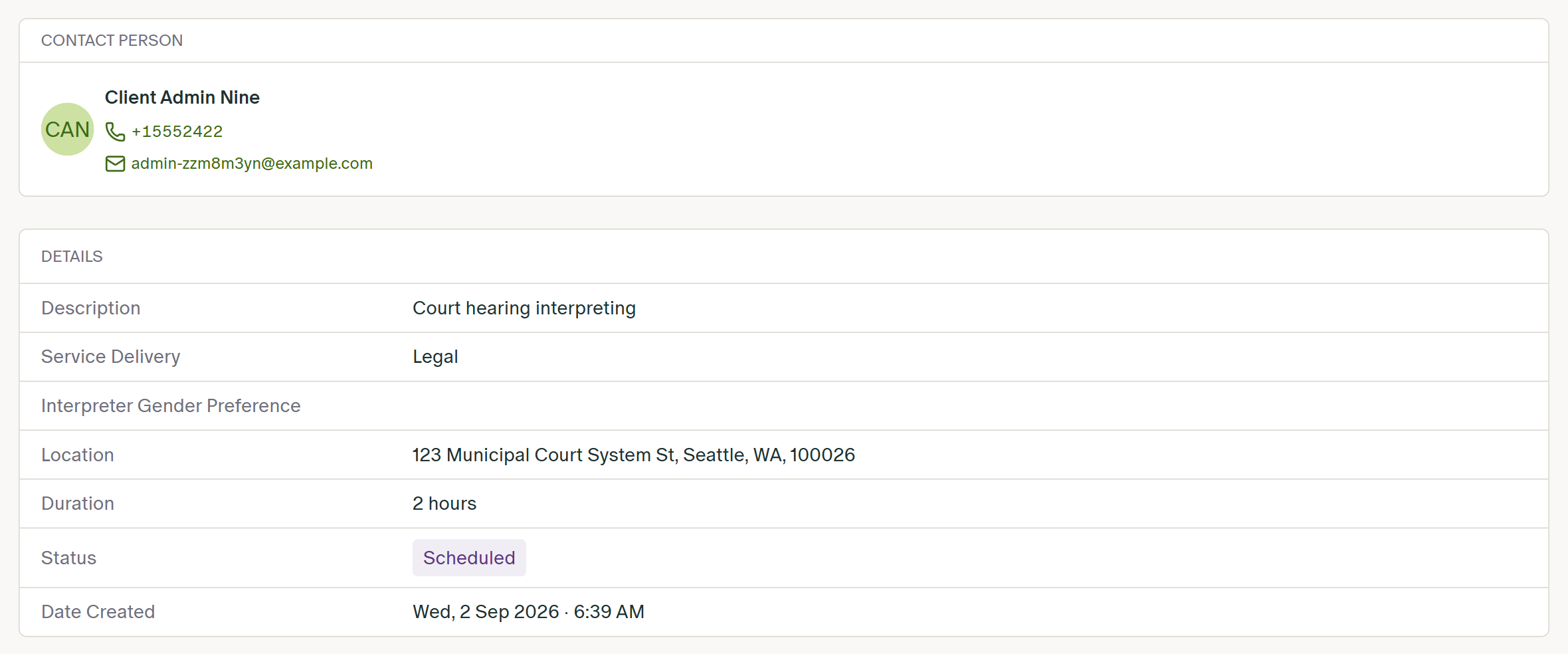
What you will see
The Location row appears only on on-site appointments. On the Appointments list, the address shows under the time; hover over it to see it in full.
Select View on map under the address to see it on a map. For directions, copy the address into the map app you use.
Things that most often look wrong, and why:
There is no Contact Person card. The booking did not include a contact person. Contact Piedmont Global if you need one.
There is no Location row. The appointment is not an on-site appointment, so there is no address to show.
Available since March 2026. Updated in Release 10.19.2026.
Last updated 19 October 2026