
Who this is for and what it does
Interpreters who take on-demand phone and video calls. Signing in to Connexus does not make you available: going online does. While you are online, calls that match your language pairs and call types are offered to you.
Before you start
Plug in your headset and allow Connexus to use your microphone, and your camera if you take video calls, when the browser asks.
Check you have no booked appointment starting in the next 30 minutes. You cannot go online until it is done.
Steps
Select the call button at the bottom right of any Connexus page, then the On Demand tab. It reads Offline.
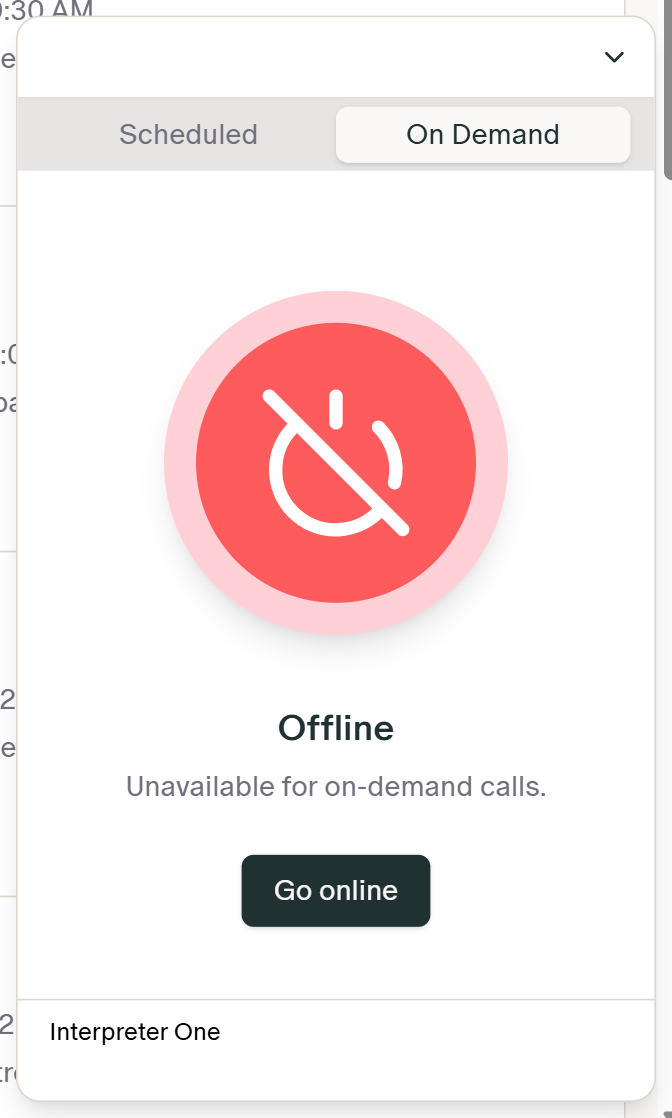
Select Go online. Connexus checks your microphone, and your camera too if your profile includes on-demand video calls. If a device needs attention, see Fix your camera or microphone to go online.
The tab reads Online and "Available for on-demand calls." The call button reads "You're online!"
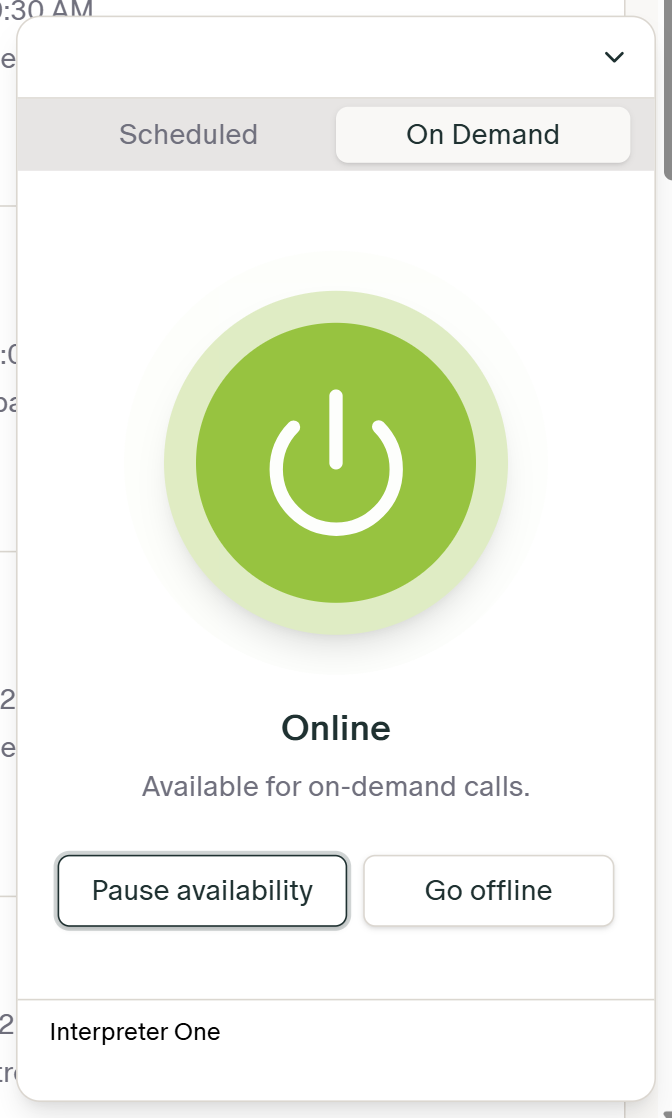
To step away briefly, select Pause availability. No new calls reach you, and a 15-minute countdown shows. Select Resume when you are back. If you do not resume within 15 minutes, you go offline.
When you finish, select Go offline, then Yes, go offline.
What you will see
| Status | What it means |
|---|---|
| Online | Calls can be offered to you. |
| Busy | You are on a call. Your status returns to online by itself afterwards. |
| Paused | No new calls, with a countdown. After 15 minutes you go offline. |
| Offline | No calls are offered to you. |
You only receive on-demand calls while you are on a normal Connexus page. While you are in a call, new calls are not offered.
Things that most often look wrong, and why:
"Paused after 2 missed calls". Two calls were offered to you within 10 minutes and you did not answer either, so Connexus paused you to keep callers from waiting. Select Resume when you are ready to take calls, or you go offline after 15 minutes. If you were away, select Go offline next time before you step away, or Pause availability for a short break.
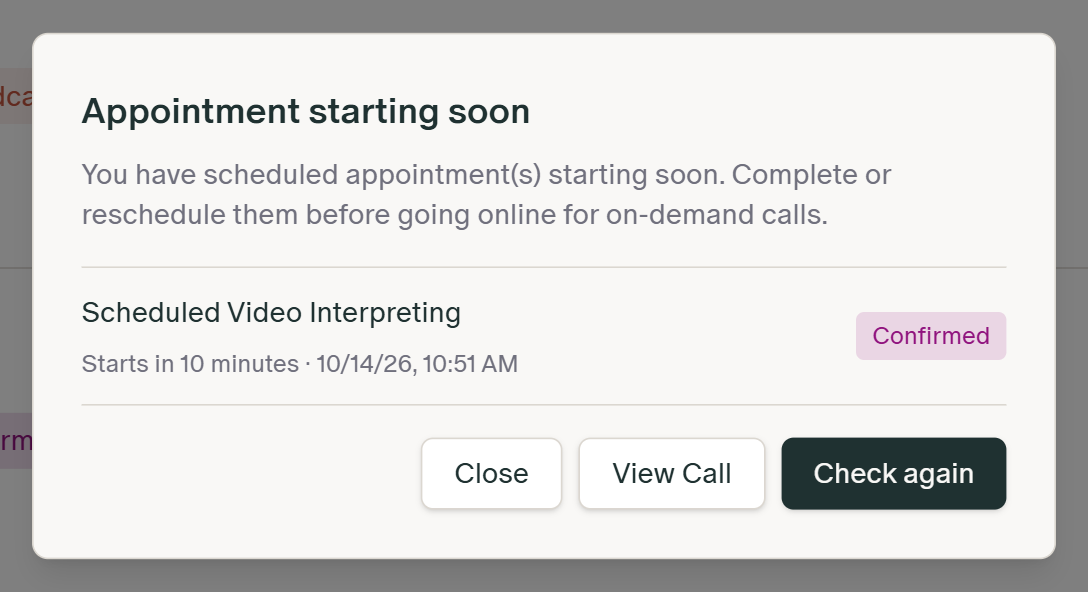
"Appointment starting soon". You have a booked appointment starting within 30 minutes. Select Check again after it, or View Call to open it.
"Scheduled call in progress". You are in a scheduled session. End it first.
"You're already in Call" or "Leave Call & Go online". You are still in an on-demand call. Select Leave Call & Go online to leave it and go online.
A window says your camera or microphone needs attention. Fix the device using the steps in the window, then select Check again. See Fix your camera or microphone to go online.
"Available for phone calls only". Your camera failed the check, so on-demand video calls skip you. Select Turn on video calls once it works.
"Connection lost". Connexus lost its connection and you will not get calls until it reconnects. Refresh the page to reconnect straight away.
I am online but no calls come. Calls are offered only for the language pairs and call types in your profile. If something is missing, contact your coordination team at interpreter@piedmontglobal.com.
Available since March 2026. Updated in Release 11.23.2026.
Last updated 23 November 2026