
Who this is for and what it does
Interpreters booked on a scheduled video or phone appointment. The call runs in your browser in a new tab. Third Party Platform appointments (such as a client's own meeting link) are joined outside Connexus.
Before you start
Use a headset and a quiet place, and for video a working camera.
The call opens a few minutes before the start time, 5 minutes unless the client has set a different number.
Steps
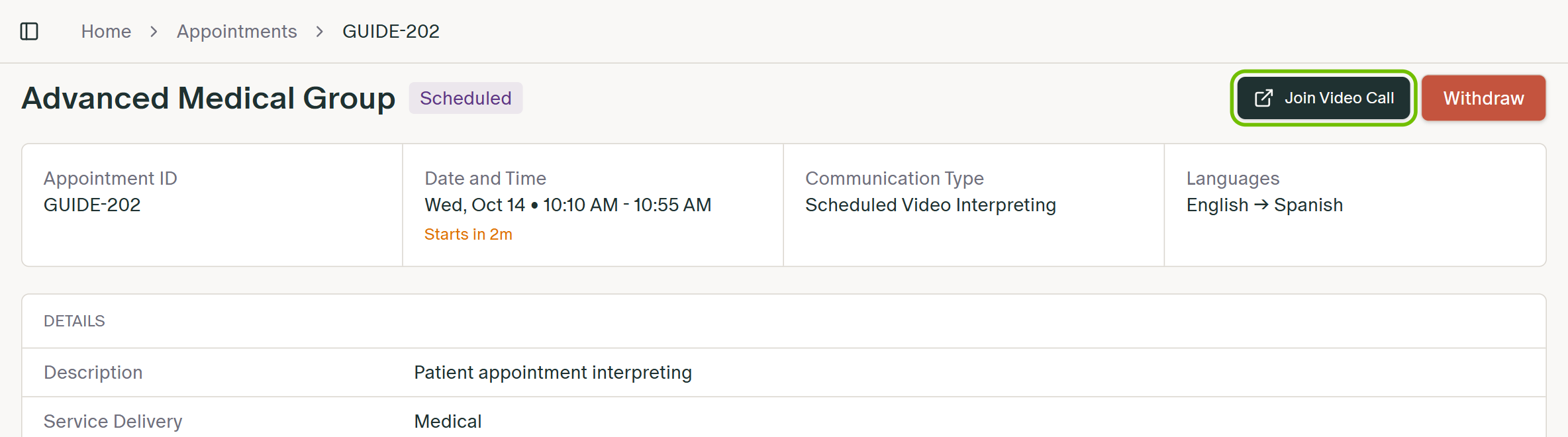
Select Appointments and open the appointment. Today's next call also shows in the call button at the bottom right, on the Scheduled tab, with Join Video call.
Select Join Video Call or Join Voice Call at the top of the page. A new tab opens.
Allow your camera and microphone when the browser asks.
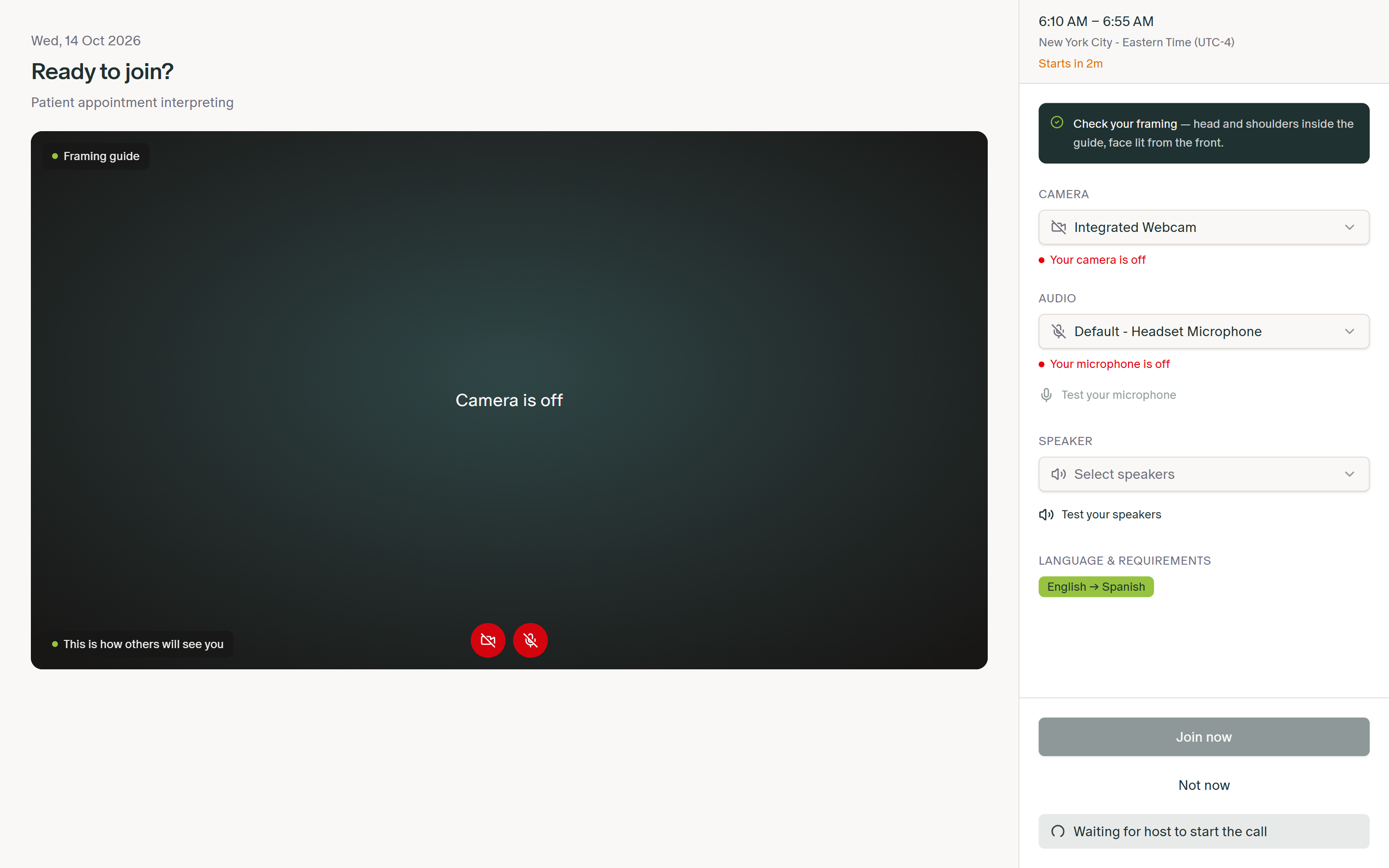
For video, check your picture and devices, then select Join now. For phone, select Join call.
When you finish, select Leave Call and rate the call quality.
What you will see
If nobody has joined the video call yet, the screen may read "Waiting for host to start the call". It moves you into the call as soon as the client or another participant joins. Some clients let the interpreter open the call first; then you go straight in.
For a phone call, the screen shows who is already on the call and a countdown to the start. During the call you can use Dial to add someone by phone.
If the client has not joined
Video, "Waiting for host to start the call". You go in as soon as the client or another participant is there. If you are still waiting, select Join now again.
Video or phone, you are in the call alone. The screen reads "Waiting for the client to join". Stay on the call.
How long to wait. Connexus does not end a video call while you wait inside the booked time. About 5 minutes after the booked end, a call with no client on it closes. If the client has not arrived, contact your coordination team at interpreter@piedmontglobal.com with the appointment number.
If you joined and the client never did, the appointment completes with your time on the call. If no call started at all, it is marked Unfulfilled at the end. You cannot close out a scheduled video or phone appointment yourself, so tell your coordination team either way.
Third Party Platform job and the client never came: select Complete Job and answer No to "Was interpretation provided for this call?". See Complete a Third Party Platform job.
Things that most often look wrong, and why:
"This call opens at" a time. You are early. Keep the screen open; Join now becomes available when the call opens.
There is no Join button. The appointment is on-site or a Third Party Platform job, or it has not been confirmed for you. For a Third Party Platform job, use the Third Party Invite details on the appointment page.
The call is not in the call button any more. The call button only shows a call before its start time. Open the appointment from Appointments and join from there.
"You do not have access to this call." You are not booked on this appointment. Check that you accepted it, or contact your coordination team at interpreter@piedmontglobal.com.
Available since March 2026
Last updated 20 October 2026