
Who this is for and what it does
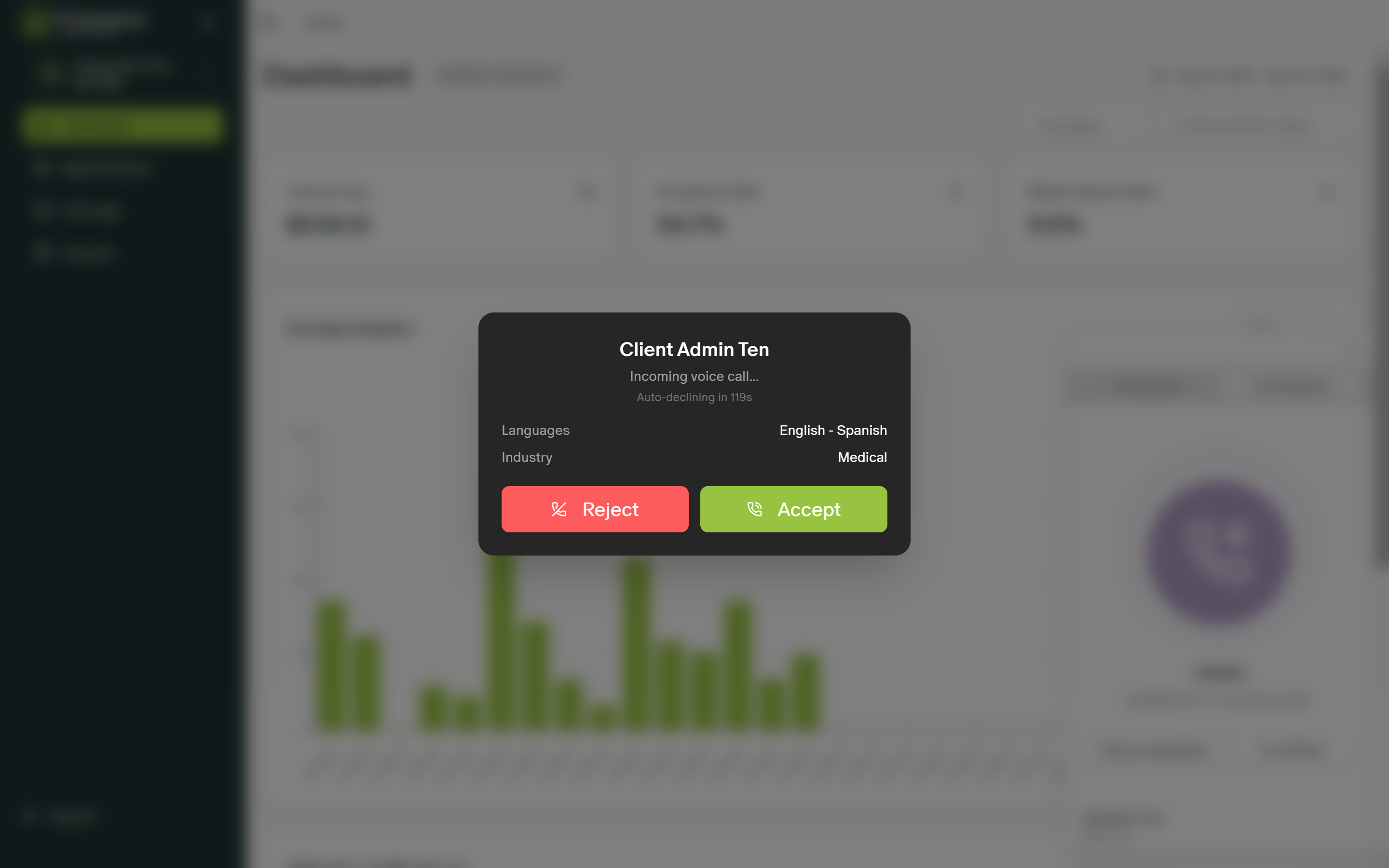
When a call is offered to you, Connexus opens an incoming call window and plays a ringing sound until you accept, reject, or the offer runs out. The window shows who is calling, the language pair and the industry, and counts down with "Auto-declining in" a number of seconds. If you do not hear the ring, you can miss the offer before you see it. These checks make sure the ring reaches you.
Before you start
You are signed in to Connexus in your web browser, and your status is Online.
Have the headset or speakers you use for calls connected.
Steps
Set your computer's default sound output. The ring plays on your computer's default output, which may not be the headset you pick for calls in Connexus. Open your computer's sound settings and choose, as the default output, the headset or speakers you will hear. If you use a headset, either wear it while you are Online or set your speakers as the default so the ring plays out loud.
Turn the sound up. Check that your computer's volume is up and not muted.
Keep the Connexus tab open. Do not close the Connexus tab or sign out while you are Online.
Check the tab is not muted. Look at the Connexus tab in your browser. If it shows a crossed-out speaker icon, right-click the tab and choose the option to unmute the site.
Click anywhere on the Connexus page each time you open or refresh it. Browsers do not let a page play sound until you have clicked on it at least once. One click on any empty part of the page is enough, and it lasts until you refresh or reopen the tab.
What you will see
When a call is offered, the incoming call window opens and the ring repeats until you select Accept or Reject, or the countdown ends. The ring stops as soon as you choose.
Things that most often look wrong, and why:
I see the incoming call window but hear nothing. The ring is going to a different sound output, the tab is muted, or you have not clicked on the page since you opened or refreshed it. Work through steps 1, 4 and 5.
I hear the ring on my speakers but the call is in my headset. That is expected. The ring uses your computer's default output; the call uses the microphone and speaker you choose for calls.
I hear the person on calls but never the ring. The call and the ring can use different outputs. Set your computer's default output, step 1, to a device you can hear.
I stopped hearing the ring after the page reloaded. A refresh resets the browser's permission to play sound. Click anywhere on the page again.
No call window appears at all. Check that your status is Online, not Paused or Offline, and that you are still signed in.
I want to test that I can hear it. Connexus has no test call for this yet. Check your computer's default output with its own sound test in its sound settings, and keep the Connexus tab clicked and unmuted.
Available since March 2026
Last updated 13 October 2026