
Who this is for and what it does
Interpreters who take scheduled appointments. Piedmont Global's scheduling team uses your availability when looking for an interpreter for a scheduled appointment. If you have never set your availability, you count as available on any day. It does not control on-demand calls: for those, you go online from the call button.
Steps
Select your name at the top of the sidebar, then My Profile.
Select the Availability tab. It shows your current Work Days and Work Hours.
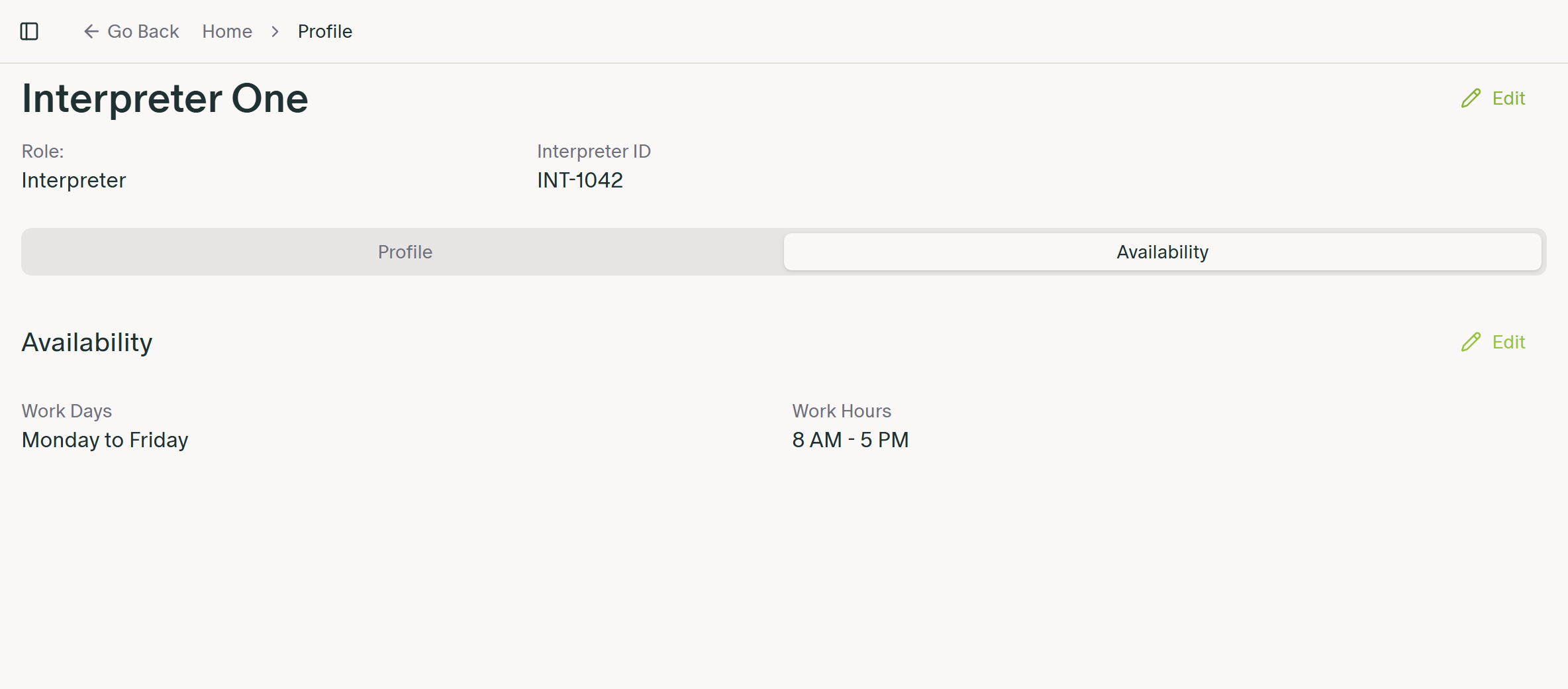
Select Edit.
Under Work Days, select the days you work. Select a day again to remove it. Choose the days first, then the times.
Set Start Time and End Time. The same hours apply to every day you selected.
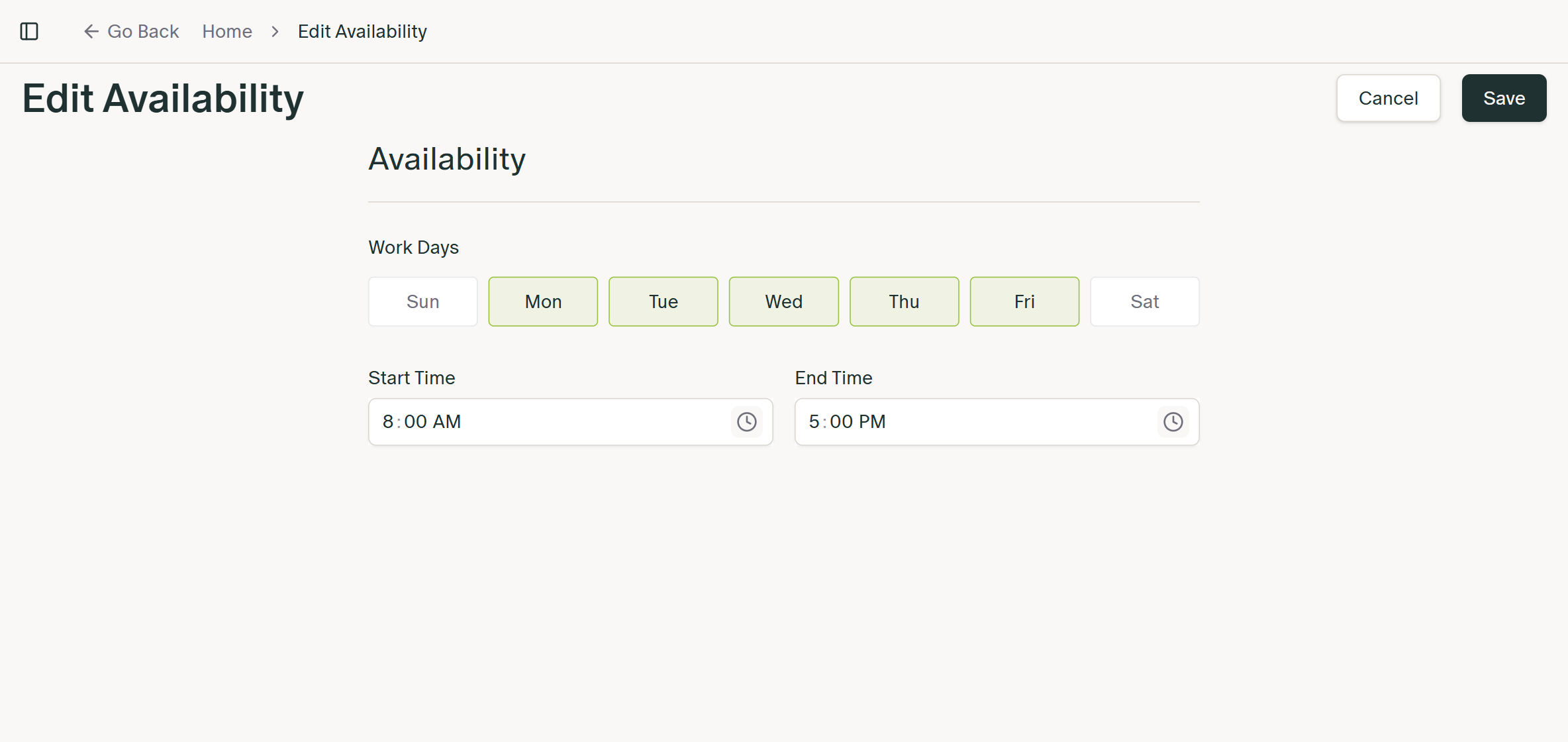
Select Save.
What you will see
A message reads "Availability updated successfully" and you return to My Profile, where Work Days and Work Hours show your new settings.
You can set one block of hours that applies to all your work days. You cannot set different hours for different days, breaks, or dates off here. If you need time off or have hours that vary, tell your coordination team at interpreter@piedmontglobal.com.
Things that most often look wrong, and why:
"Start time is required for each selected day" or "End time is required for each selected day". Set both times before you save.
Offers arrive outside the hours I set. Your hours are read in the time zone on your Connexus account. Ask your coordination team at interpreter@piedmontglobal.com to check that it matches where you are.
"Failed to update availability". The change did not save. Try again; if it fails again, contact your coordination team.
I set my hours but I am not getting on-demand calls. On-demand calls only reach you while you are online. Open the call button at the bottom right and select Go online.
Available since March 2026. Updated in Release 10.19.2026.
Last updated 19 October 2026