
Who this is for and what it does
New interpreters working with Piedmont Global through Connexus. Piedmont Global creates your account; you cannot create one yourself. Signing in gives you your Dashboard, your appointments, your call logs and your invoices.
Before you start
Find the email "Welcome to Connexus!" from Piedmont Global. Check your spam or junk folder if it is not in your inbox.
Use the email address Piedmont Global has on file for you. The welcome email shows it as Your Username.
The welcome email also has an onboarding package attached as a PDF, covering how to get into Connexus, find your way around and use its main features. Its Register to the Interpreter Hub button opens the Interpreter Hub, where these help articles are.
Steps
Open the welcome email and select Access Connexus.
Go to the Connexus sign-in page. Under Email address, enter your email and select Continue.
Enter your password and complete any other steps shown.
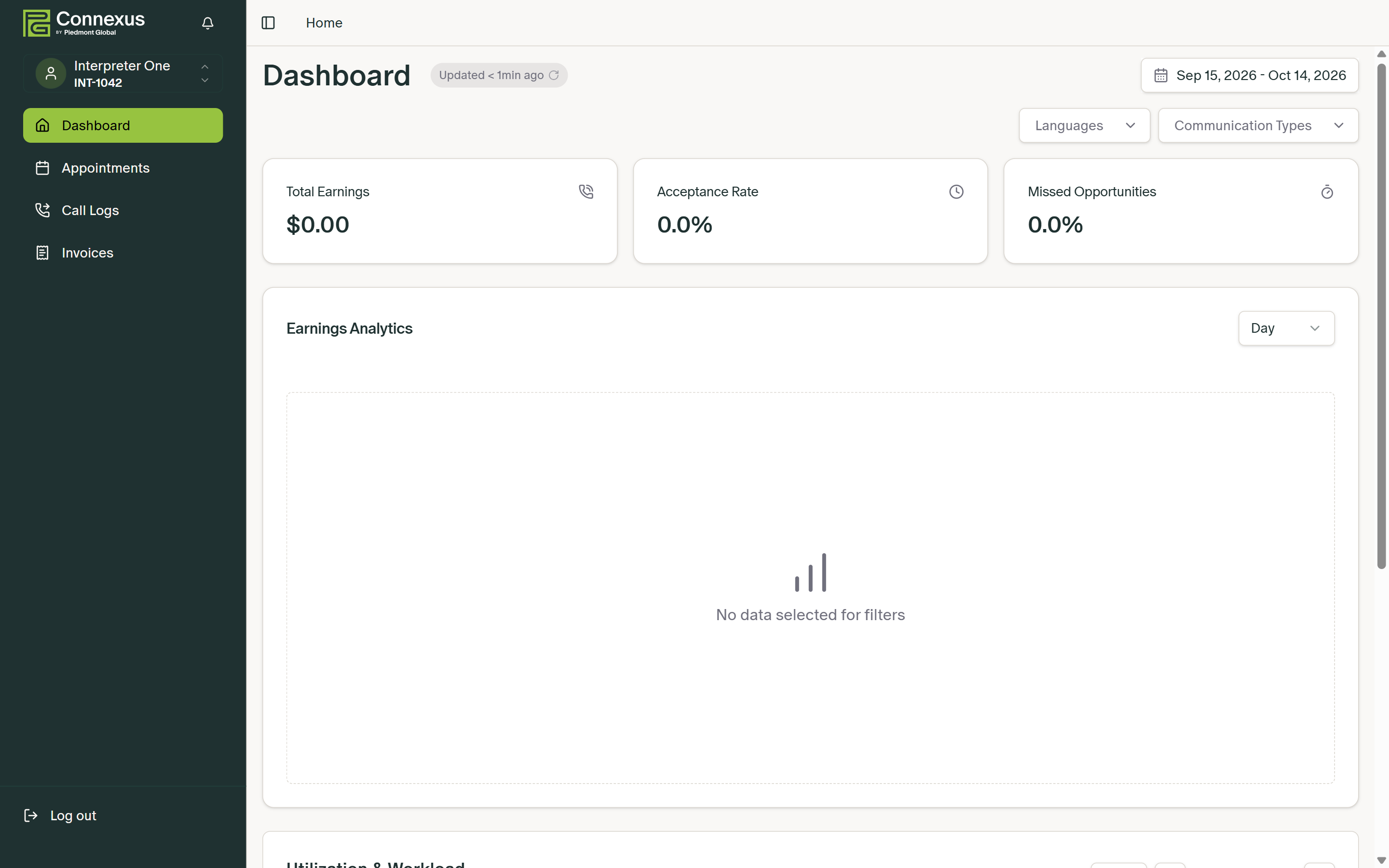
Connexus opens on your Dashboard.
What you will see
The Dashboard shows your Total Earnings, Acceptance Rate and Missed Opportunities for the dates you choose. The sidebar on the left has:
Dashboard: your figures at a glance.
Appointments: invitations and the appointments you are booked on.
Call Logs: the calls you have taken.
Invoices: your invoices.
Select your name at the top of the sidebar for My Profile, Manage Account and Sign Out. The call button at the bottom right is where you go online for on-demand calls. Signing in does not make you available for calls by itself.
Things that most often look wrong, and why:
I never received the welcome email. Check spam or junk. If it is not there, contact your Piedmont Global coordination team at interpreter@piedmontglobal.com and ask them to send it again.
The welcome email has no PDF attached. The onboarding package could not be attached that time. Ask your coordination team for a copy.
"Your session has expired for security purposes. Please log in again." Connexus signed you out to protect your account. Sign in again.
"No access yet". Your account is not fully set up. Contact your coordination team.
Available since March 2026. Updated in Release 11.20.2026.
Last updated 20 November 2026