
Who this is for and what it does
Interpreters checking what is coming up, what they have been offered, and what they need to know before an appointment.
Steps
Select Appointments in the sidebar.
To see one status only, select its card above the list: Broadcasted (offered to interpreters, waiting for someone to accept), Scheduled (an interpreter is booked), Completed or Cancelled. Select it again to show everything.
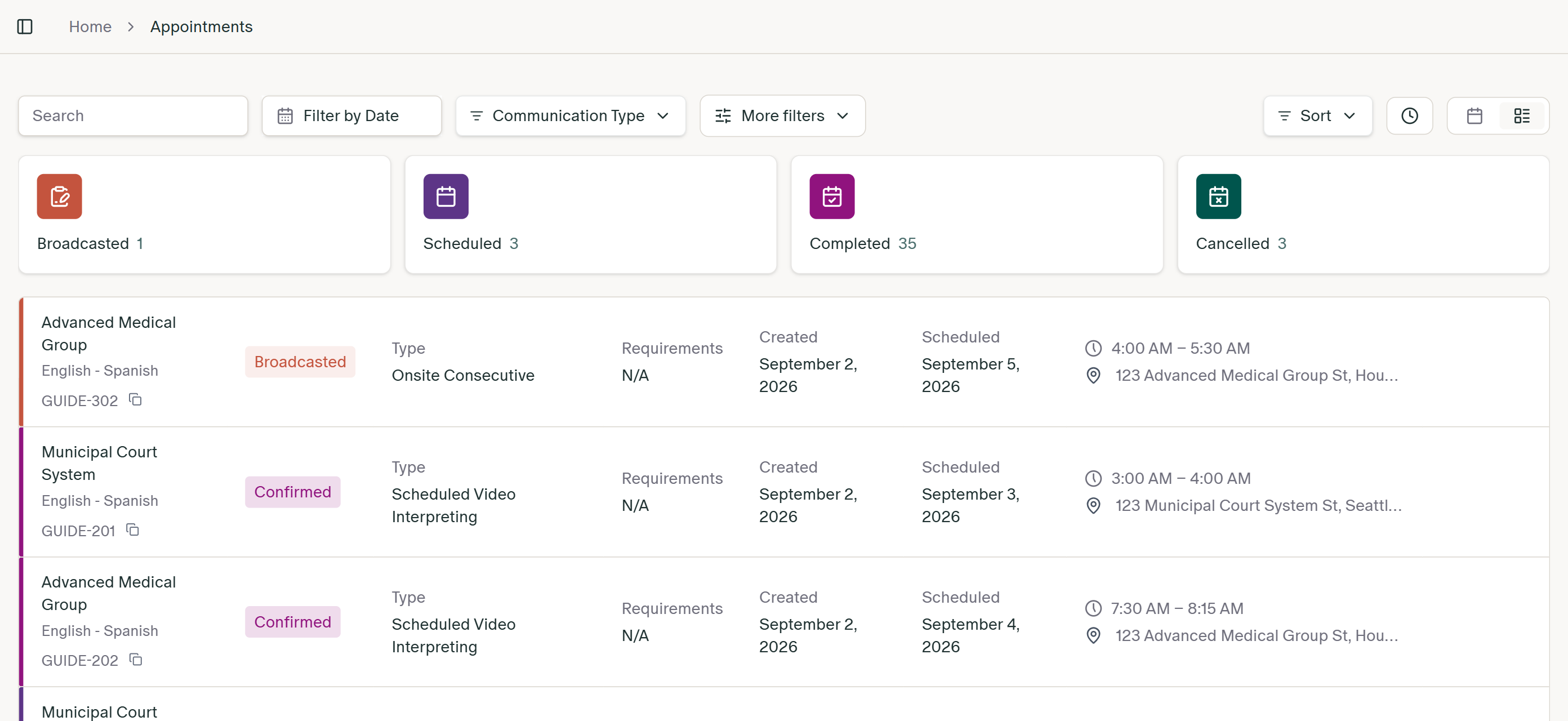
To narrow the list, type in Search, choose dates, pick a Communication Type, or open More filters for the languages. A search looks at all dates.
To change the order, open Sort. Choose how many appointments show per page under Rows per page; the foot shows how many appointments match, for example "24 appointments". To see a month at a time, select Calendar view; select Table view to go back.
Select an appointment to open its page.
What you will see
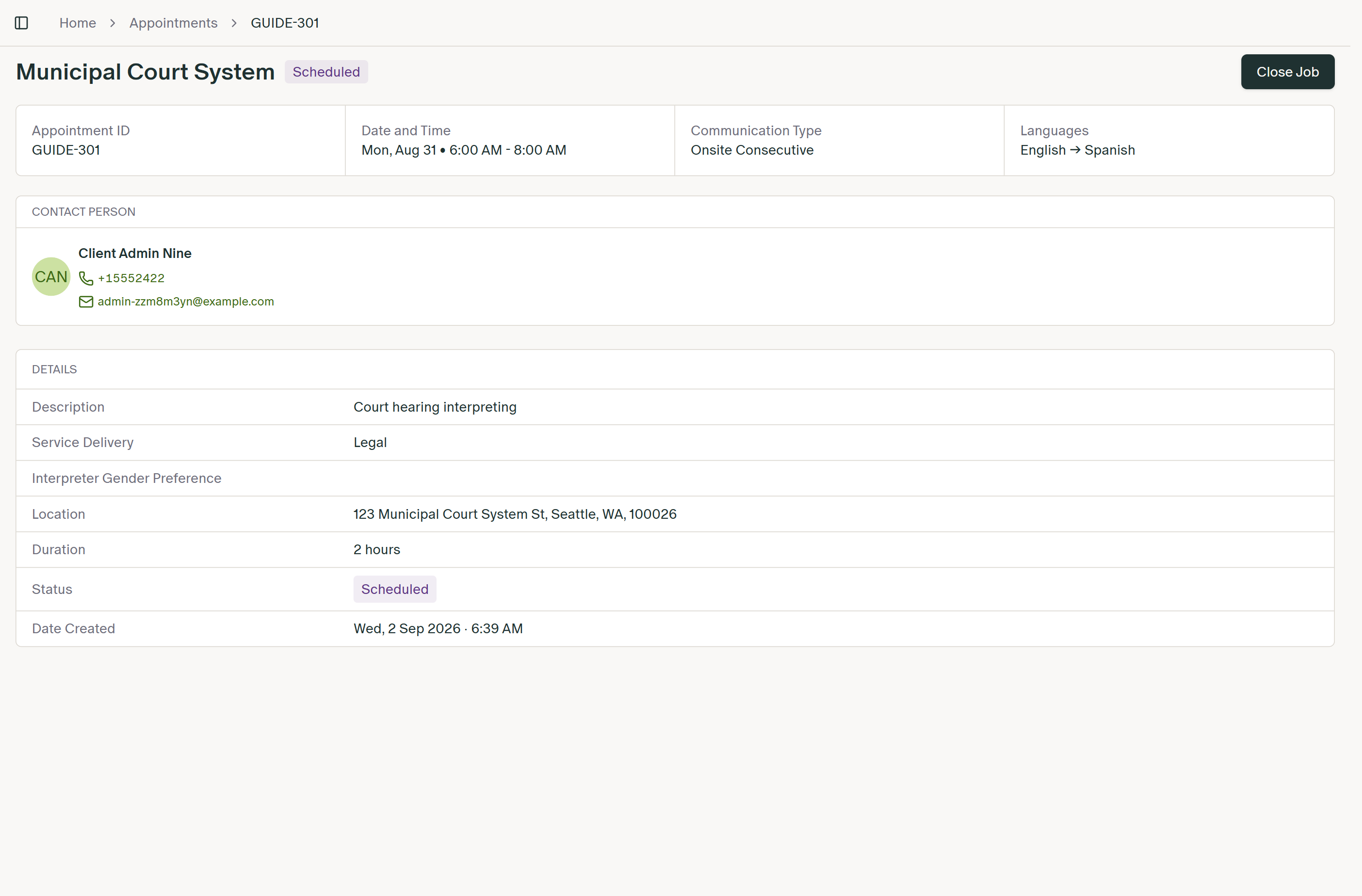
The appointment page shows the client's name at the top, then the Appointment ID, Date and Time, Communication Type and Languages. If the time zone you are viewing in differs from the appointment's, a Your Time line shows the appointment in that zone.
Below that:
Contact Person: who to contact at the client, with a phone number and email, if the client named one.
Details: the Description, Service Delivery, Duration, and for an on-site job the Location with View on map. For a Third Party Platform job, the Third Party Invite shows the meeting details.
Answers to the client's extra booking questions, before the appointment starts.
You cannot change, cancel or reschedule an appointment. Contact your coordination team at interpreter@piedmontglobal.com if something needs to change.
Things that most often look wrong, and why:
An appointment I declined is gone. Declined offers leave your list.
The times look different from what the client said. Times are shown in the time zone picked at the top of the list. Check it, and the Your Time line on the appointment page. If the Your Time line does not match where you are, ask your coordination team at interpreter@piedmontglobal.com to check the time zone on your account.
"Appointment Not Found". The offer has closed or the appointment was removed.
Available since March 2026. Updated in Release 10.19.2026.
Last updated 19 October 2026