
Who this is for and what it does
Interpreters on sign language video calls, scheduled or on demand, who need to bring in a team interpreter or change who is interpreting.
Steps
Ask for a team interpreter
On the call, select Request interpreter team. It shows to an interpreter holding a seat, once the call is in progress.
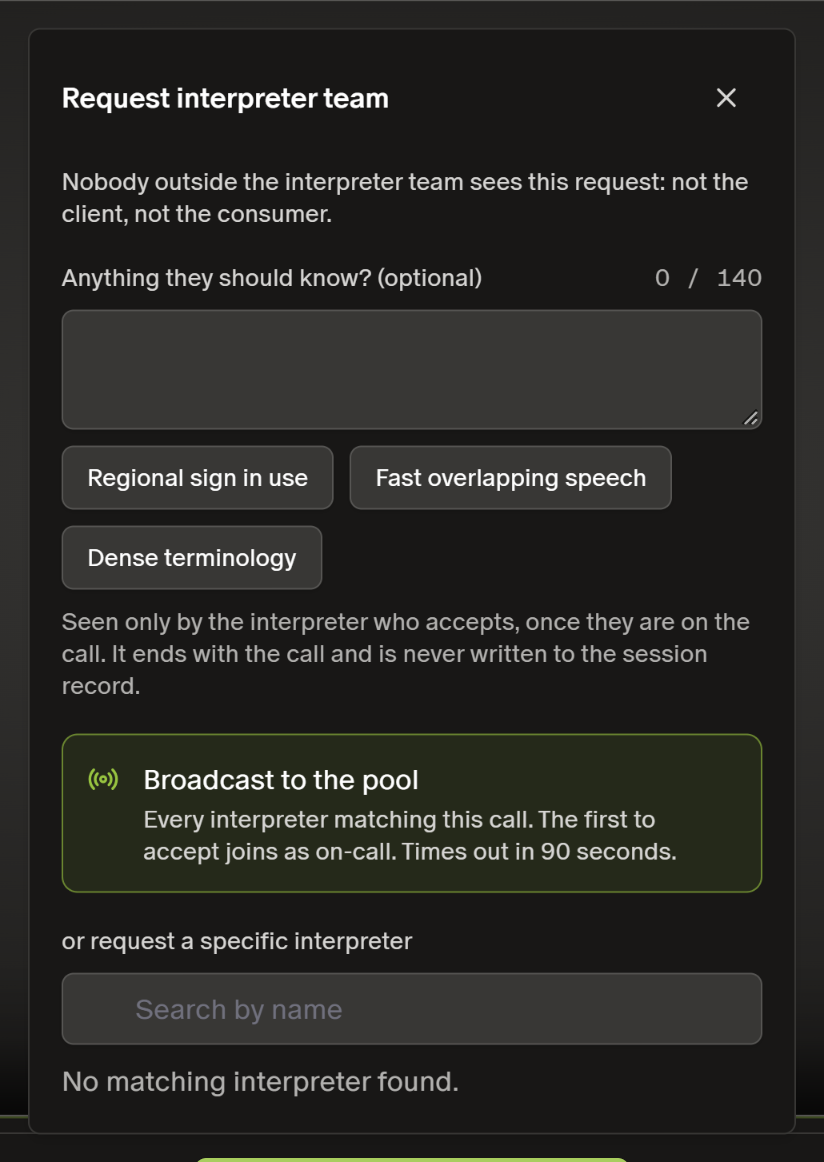
If you want, add a note under Anything they should know? (optional), up to 140 characters, or pick a quick note such as Regional sign in use. Only the interpreter who accepts sees it, once they are on the call.
Choose Broadcast to the pool to ask every interpreter who matches the call, or search under or request a specific interpreter and select Request.
Wait. The panel shows Waiting for a team interpreter and when the request closes. A request stays open for 90 seconds. Select Cancel request to stop it.
When someone accepts, you see "A team interpreter accepted and is joining the call." They join as a standby.
Answer a team request
When a request reaches you, a Team interpreter requested window shows the client, the languages and the appointment.
Select Accept and join to join the call, or Decline. The countdown shows how long the request stays open.
Hand over the hot seat
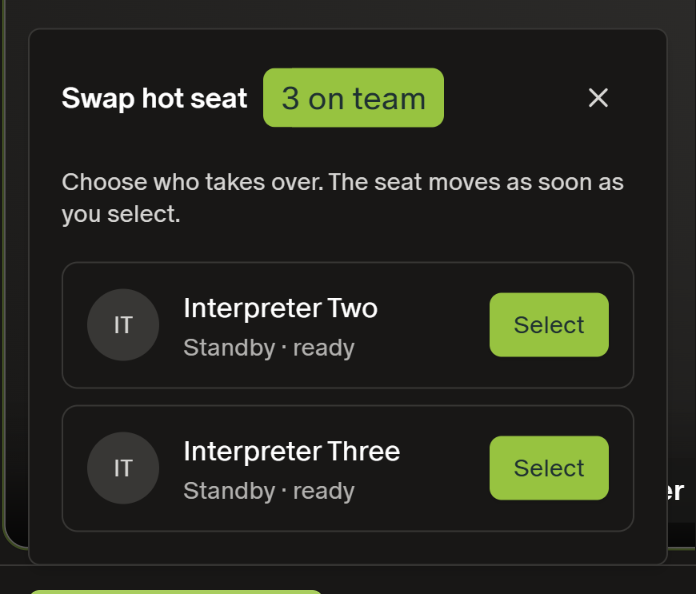
If you hold the hot seat and a standby is on the call, select Swap hot seat.
With one standby, the seat moves to them straight away. With two or more, choose who takes over and select Select.
What you will see
Each interpreter's tile shows a badge: Hot seat for the interpreter who is interpreting, and a hidden badge for standbys.
As a standby you see "You are on standby: hidden from the client and the Deaf consumer, who cannot hear you. The hot seat can." The first time, a short briefing explains standby; select Start observing. The hot seat decides when the team changes; there is no control for a standby to take the seat.
The client and any guests see only the interpreter in the hot seat, beside the Deaf consumer. When you swap, they hear a chime and "Your interpreter is changing" covers your picture with the incoming interpreter's first name and last initial, for example "Team switch · Riley M will continue the session".
No interpreter can remove another interpreter from the call.
If the hot-seat interpreter selects Leave Call without swapping, the seat goes to the standby who has been on the call longest. If their connection drops and they are not back within a few seconds, that standby takes the seat about 10 seconds after the drop, after a short countdown. To choose who takes over, swap before you leave: see Hand over before you leave an ASL video call.
Things that most often look wrong, and why:
I cannot see Swap hot seat. It appears only to the hot seat, and only once a standby is on the call.
"Another interpreter on this call has a request open". Only one team request runs at a time. Wait for it to close.
"Nobody accepted in time." No one accepted within 90 seconds. Try again, or ask the pool instead of one interpreter.
Available since Release 10.19.2026. Updated in Release 11.18.2026.
Last updated 18 November 2026