
Who this is for and what it does
Interpreters who want Connexus to use a particular headset, microphone or camera, or who want to check them before a call.
Steps
Before a video call
Open the call. Your camera and microphone start off: select Turn camera on to see yourself.
Choose your Camera, your microphone under Audio, and your Speaker.
Select Test your microphone to record a few seconds, then Play back to hear it. Select Test your speakers to play a test sound.
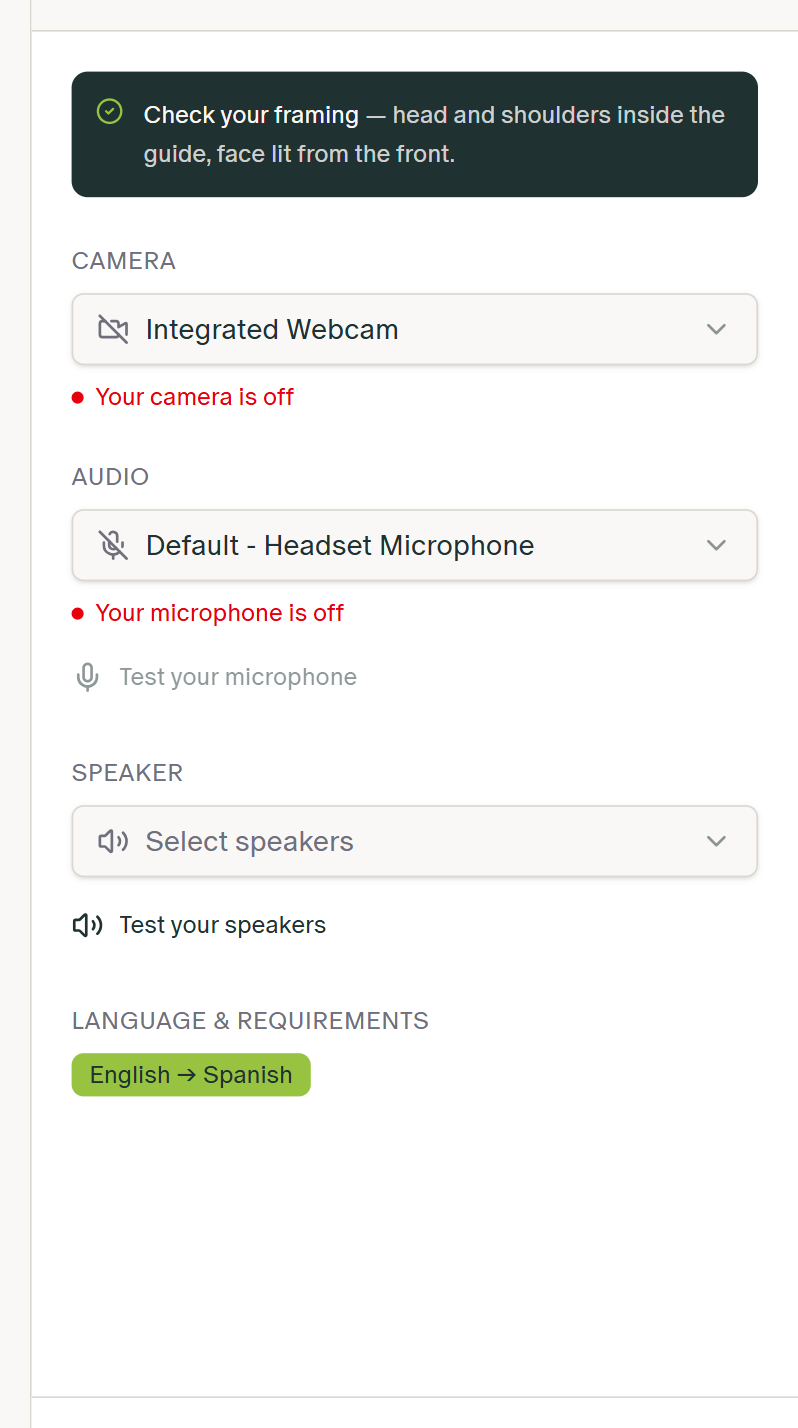
Select Join now. In the call, check Mic at the top and select it if it is red.
During a video call
Select Devices at the top of the call.
Choose a different Camera, Microphone or Speaker.
Before and during a phone call
Under Audio, use Mic and Speaker to choose your devices. The level meter moves when you speak, while you are not muted.
Select Test speaker to hear a test tone, then Join call.
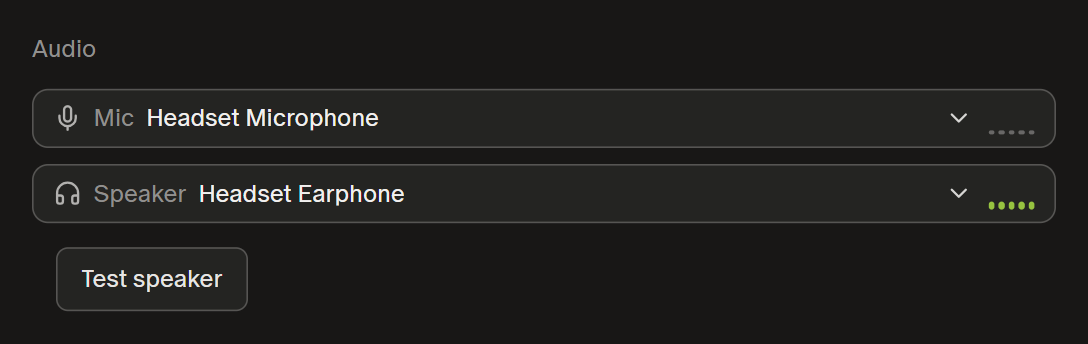
During the call, the same Mic and Speaker buttons sit above the mute and end buttons.
What you will see
Before you join a scheduled phone call, a line under Audio tells you whether your microphone is working, for example "Speak to check your microphone." An on-demand phone call you accept opens straight into the call, without this check.
Things that most often look wrong, and why:
"Microphone access is blocked." Your browser is not allowing Connexus to use the microphone. Allow it in your browser settings, then try again.
"No microphone detected." Connect a microphone; it appears in the list.
"Couldn't switch your microphone. Still using the previous one." The device could not be used. Check it is connected and choose it again.
A device is missing from the list. Check it is connected and switched on; once connected, it appears in the list.
Incoming calls do not ring on my headset. The ring plays on your computer's default sound output. See Make sure you hear incoming calls ring.
Available since Release 07.27.2026. Video preview and device messages since Release 09.21.2026.
Last updated 21 October 2026