
Who this is for and what it does
Interpreters on a phone or video call in Connexus who can hear the client but the client cannot hear them. Connexus does not warn you when you are muted, so check these in order.
Steps
Check you are not muted.
Video: look at Mic in the top bar. If it is red with a line through the microphone, select it to turn it on.
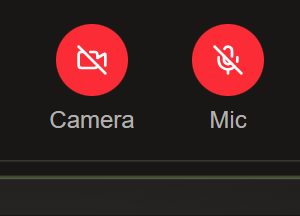
Phone: look at the large round button under the Mic and Speaker lists. If it is red, select it to unmute. The small wave next to Mic moves when you talk only while you are not muted.
Check the right microphone is picked.
Video: select Devices in the top bar and choose your headset under Microphone.
Phone: open the Mic list and choose your headset.
For more on devices, see Choose and test your camera, microphone and speaker.
Close anything else that uses your microphone, such as another calling app or a second Connexus tab with the same call. Connexus may show "already in use by another application" or "Another participant with the same identity is already in this call".
Leave and rejoin. Reload the page, then rejoin the call. On video you come back through the preview: select Join now, then check Mic at the top of the call and select it if it is red. See Rejoin a call after it drops.
If you added someone by phone and only they cannot hear you, ask them to check their own phone's mute and volume. Connexus cannot mute or unmute them, and it does not show when they mute themselves. You can also remove them and dial again: see Add a phone participant to a call.
What you will see
"Connecting you in a moment..." on a phone call: you have accepted, but the audio is not connected yet. The client cannot hear you until this clears.
The call timer is running. This only means the call has started. It does not mean the client can hear you.
On a video preview, "Your microphone is off". After you join, check Mic at the top of the call and select it if it is red.
On a sign language call, you are on standby. The client and the Deaf consumer cannot hear you by design until you take the hot seat. See Work as a team on an ASL video call.
A window says your microphone needs attention when you go online, or "Device Access Required" when a video call opens: your browser is blocking the microphone. Follow the steps on screen to allow it.
"Your microphone stopped working. The client cannot hear you." during a call: check your headset and Devices, then select Try again.
If none of these help, tell the interpretation team the appointment number and the time of the call.
Available since March 2026
Last updated 2 November 2026