
Who this is for and what it does
Interpreters who are new to Connexus, Piedmont Global's platform for interpreted calls and appointments.
Steps
Sign in for the first time. Open the invitation email from Piedmont Global and follow its link. See Sign in for the first time and Set or update your password.
Check your profile. Select your name at the top of the sidebar, then My Profile. Your email, address and language pairs are changed by Piedmont Global, not by you. See Update your profile.
Make sure you hear calls ring. Connexus rings through your web browser on your computer's default sound output. Check this before you take your first call: see Make sure you hear incoming calls ring. To choose your headset, microphone or camera, see Choose and test your camera, microphone and speaker.
Set your availability. Choose your work days and hours on the Availability tab of My Profile. See Set your availability.
Take on-demand calls. Select the call button at the bottom right, open On Demand and select Go online. You receive on-demand calls only while the call button reads "You're online!". See:
Take scheduled appointments. Open an appointment you are offered and select Accept or Decline. Scheduled calls do not ring: you join them yourself, from a few minutes before the start time. See:
Finish the job. Before an on-site appointment, see Find the address and contact for an on-site appointment. After it, see Close out an on-site job. After a Third Party Platform appointment, see Complete a Third Party Platform job.
To look back at the calls you have taken, see Read your call logs.
What you will see
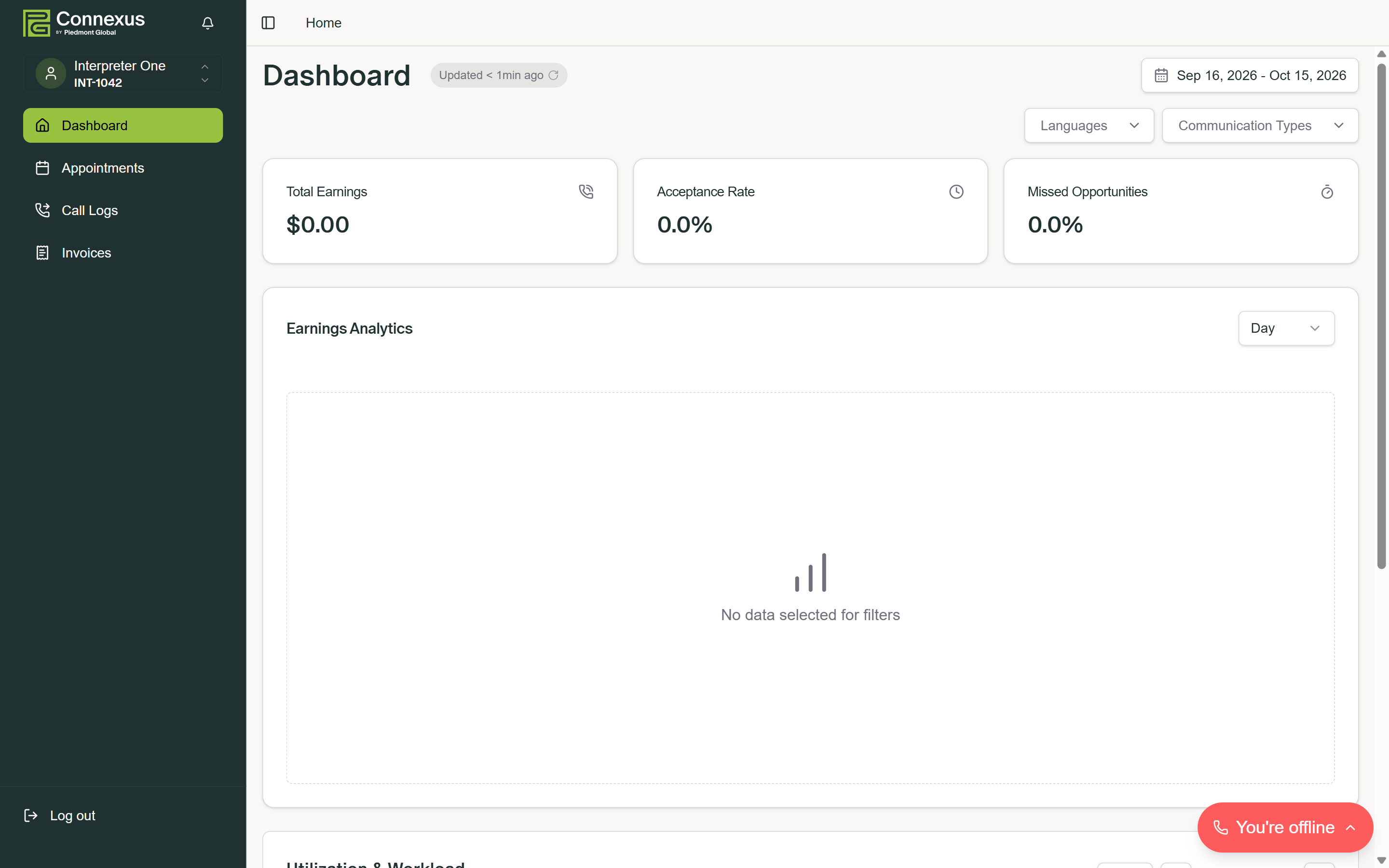
Once you are signed in, Connexus shows the sidebar on the left and the call button at the bottom right.
Things that most often look wrong, and why:
No calls are coming in. You receive on-demand calls only while the call button reads "You're online!". See Go online and take on-demand calls.
A call was offered but I did not hear it. See Make sure you hear incoming calls ring.
Available since March 2026
Last updated 16 October 2026